
 ·
5 minute read
·
5 minute read
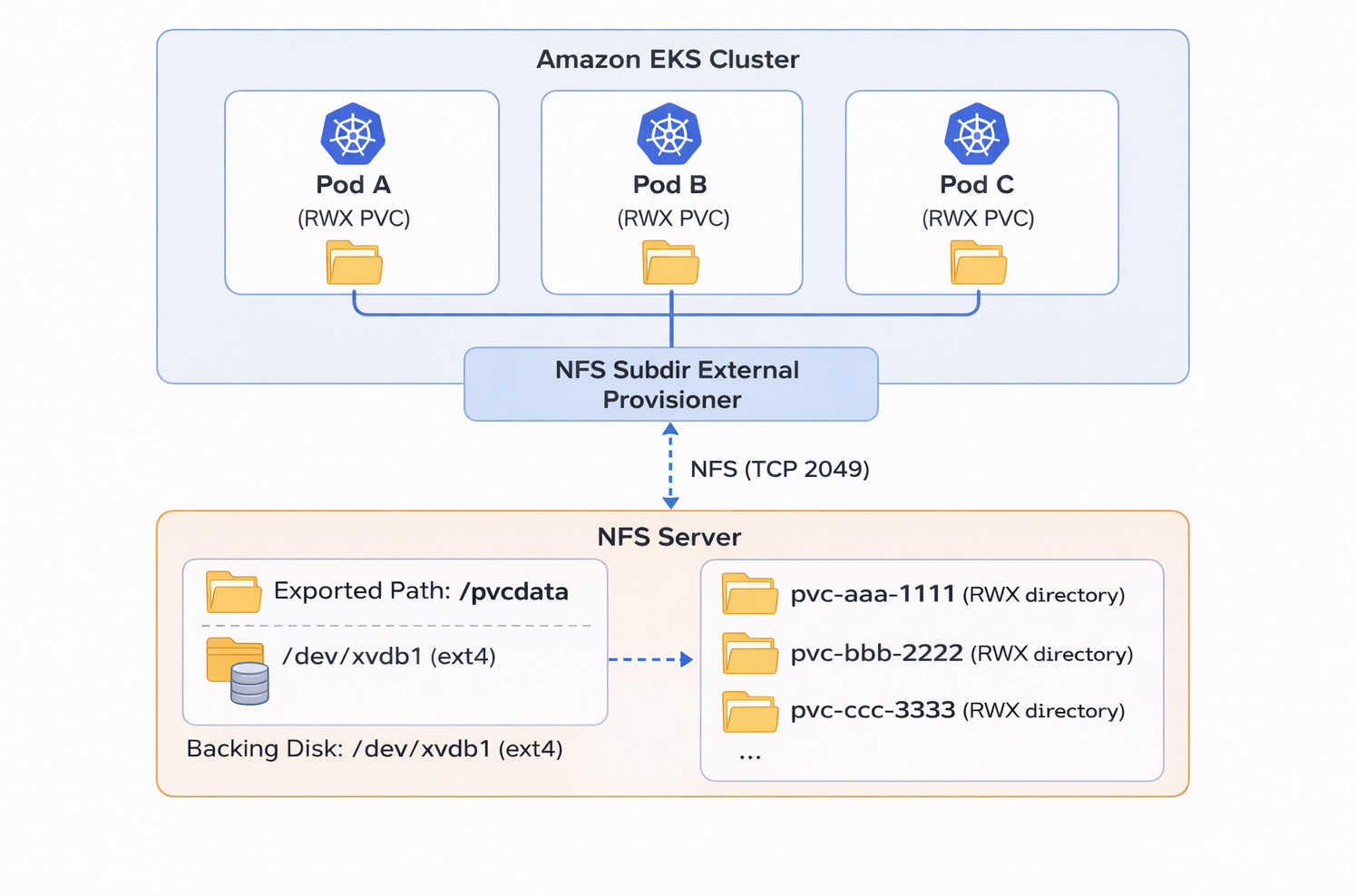
Modern Kubernetes clusters running on Amazon EKS often require shared, ReadWriteMany (RWX) capable storage for applications such as logging, CI/CD systems, caching layers, or shared configuration. While AWS offers multiple storage options, using an existing on-prem or cloud-hosted NFS server remains a simple and powerful solution when RWX support is required, with minimal operational overhead.
This guide walks you through the entire journey:
- Installing and configuring an NFS server from scratch
- Preparing a secondary disk, mounting it, and exporting it
- Configuring /etc/exports with proper permissions
- Validating NFS functionality
- Installing the NFS Subdir External Provisioner on EKS
- Testing RWX behavior using real multi-node workloads
Prerequisites
Before deploying the NFS Subdir External Provisioner on EKS, we first need a fully functional NFS server. This server will act as the backend storage for all dynamically created PVC directories.
The following prerequisites ensure that both the NFS server and the EKS cluster can communicate successfully end-to-end:
- You have a functional Amazon EKS cluster.
- Network reachability between EKS worker nodes and the NFS server (routing, firewalls, Security Groups, NACLs, VPN, or Direct Connect are properly configured).
- A Linux server (EC2 or on-prem VM) available to act as the NFS server.
- A secondary disk attached to that server (for NFS data storage), or at least free space to create (e.g., /pvcdata)
Preparing the NFS Server
This section walks through preparing a functional NFS server from a raw disk to exporting directories for Kubernetes dynamic provisioning.
Install Required NFS Packages
The nfs-utils package provides everything needed to run an NFS server, including:
- NFS server daemon (nfs-server)
- Export management tools (exportfs, showmount)
- RPC services required by the protocol
Note: These commands assume a RHEL-based distribution (Amazon Linux, Rocky Linux, CentOS, Red Hat).
For Ubuntu/Debian systems, replace this with:
Identify and Prepare the Storage Disk
NFS requires a directory to export. Most deployments use a dedicated secondary disk to avoid filling the system root volume.
List available disks
You should see something like:
For this example, we assume the target disk is: /dev/xvdb.
Partition the Disk
Kubernetes workloads require stable, persistent storage. A dedicated partition ensures isolation, easier resizing, and predictable mount points.
Run the following command:
Inside fdisk, create a single primary partition:
n → new partition
p → primary
Enter → use default partition number
Enter → use default start
Enter → use default end
w → write & exit
Resulting device:
Format the Partition
In this guide, we will use ext4, which is perfectly stable, widely supported, and fully compatible with NFS workloads. Format the partition as ext4:
Your environment can safely use ext4 because of:
- extremely stable and widely adopted
- lightweight with lower memory overhead
- simple to maintain and tune
- great for general-purpose NFS usage
- fully compatible with Kubernetes dynamic provisioning
If you expect very high concurrency (hundreds of pods writing simultaneously or heavy CI/CD cache workloads), you may format the disk as XFS instead:
XFS advantages:
- better parallel write performance
- faster directory operations
- more consistent performance with large files
But for most customers, ext4 is more than sufficient, easier to operate, and ideal for general-purpose NFS in Kubernetes.
Create and Mount the Storage Directory
This directory becomes the root path for all NFS-provisioned PVCs.
The external-provisioner will create subdirectories inside /pvcdata.
Make the Mount Persistent
Add this line to /etc/fstab:
Apply:
This ensures /pvcdata is automatically mounted after every reboot.
Validate Storage Permissions
NFS clients (EKS worker nodes) must be able to create folders and write files. Set appropriate permissions:
Kubernetes pods often run using random, auto-assigned, or application-defined UIDs, not matching nobody, nogroup, or root. This creates permission mismatches on NFS-backed volumes.
Because NFS does not enforce POSIX ACLs the same way local filesystems do, you may observe:
- Pods fail with permission denied
- Provisioner cannot create subdirectories
- Applications cannot write to the PVC
In such cases, temporarily relaxing permissions to 777 may be necessary:
Configure and Start the NFS Server
Create Export Rules
Edit /etc/exports:
Add:
Instead of defining each worker node’s IP address individually, it is more efficient to authorize the entire worker node subnet (CIDR range) in the export configuration.
Meaning of the export flags:
Rw: Allows clients read/write access
Sync: Writes are committed immediately; safer for data consistency
No_subtree_check: Avoids subtree validation; improves reliability and performance
No_root_squash: Allows root on the client to act as root on the server (required for dynamic provisioning)
no_root_squash gives root-level access to all NFS clients from the allowed subnet.
This is required because:
- Kubernetes pods often run containers as root
- The NFS provisioner must create directories with unrestricted permissions
- Many charts or workloads expect root-level write access inside their PVC
Without no_root_squash, you would see:
- permission denied
- inability to create directories
- PVC provisioning failures
It should only be used when:
- The NFS server is in a private trusted subnet
- Access is restricted to EKS worker node CIDR ranges
- There are no untrusted or multi-tenant clients
Enable and Start the NFS Server
If needed, disable the firewall:
Use this only in trusted networks (VPCs, on-prem behind firewalls, VPNs). For production, selectively allow NFS ports instead of disabling the firewall completely.
Apply Export Rules
This reloads the export configuration without restarting the NFS service.
Validate NFS Exports
Check the export list:
You should see:
Confirm NFS Daemon and Port Availability
Verify that the server is active and that port 2049 (NFS service port) is listening:
Additional RPC services (111/tcp, 111/udp, 20048/tcp) may appear depending on NFS version and kernel configuration.
Validate NFS Version Configuration
NFSv4+ is recommended for EKS clusters for:
- fewer open ports
- simplified firewall rules
- better performance
Check the configuration:
Expected defaults:
Install NFS Subdir External Provisioner on EKS
We’ll now continue by installing the nfs-subdir-external-provisioner in our cluster using Helm.
1. Add the Helm Repository
2. Install the Provisioner
Create a custom nfs-values.yaml file to define your NFS configuration, StorageClass behavior, and deployment strategy.
Below is an example configuration you can adapt:
Important fields explained:
- nfs.server – The IP address of your NFS server.
- nfs.path – Base directory where PVC subdirectories will be created.
- storageClass.name – Name used when binding PVCs (storageClassName: nfs-client).
- reclaimPolicy: Retain – Keeps data even if the PVC is deleted.
- accessModes: ReadWriteMany – Enables multi-node read/write access, the main reason to use NFS.
If you use: reclaimPolicy: Delete then Kubernetes will delete the underlying NFS directory as soon as the PVC is deleted. There is no recovery unless you’ve taken an external backup. This is why Retain is strongly recommended for:
- production environments
- stateful workloads
- any situation where data has long-term value
Once your nfs-values.yaml file is ready, install the provisioner using Helm:
This will deploy the provisioner, create the StorageClass, and enable dynamic PVC provisioning backed by your NFS server.
3. Validate the Deployment
You should now see:
- Pods in Running state
- A StorageClass named nfs-client (as default)
Testing NFS in the Cluster
After installing the NFS Subdir External Provisioner, you can validate that dynamic provisioning and RWX access work correctly by deploying a simple test workload.
This test will:
- Create a PVC using the nfs-client StorageClass
- Mount it on every node via a DaemonSet
- Write periodic timestamps into node-specific subdirectories
- Confirm that all nodes can read/write to the same NFS share
1. Create the Test Workload
Apply the following test-nfs.yaml manifest:
Important fields explained:
- PersistentVolumeClaim → storageClassName
- Ensures the PVC uses the NFS StorageClass (nfs-client).
- DaemonSet
- Creates one pod per node so you can test multi-node NFS RWX behavior.
- env.NODE_NAME
- Injects the node name into each pod to create node-specific directories.
- command
- Creates a folder per node and writes timestamps every 60 seconds.
- volumeMounts / volumes
- Mounts the PVC at /data inside each tester pod.
Then apply it:
2. Check Logs on Any Pod
Pick any pod and check the logs:
Each node should write its own timestamps into its own subdirectory on the NFS server.
The structure created on NFS should look like:
And the content:
Each folder contains a test.txt file with timestamps written by the corresponding node.
This verifies that:
- The PVC was dynamically provisioned
- The DaemonSet successfully mounted NFS
- All nodes can write simultaneously via RWX
- The provisioner creates the correct subdirectory structures
Validate on the NFS Server
From the NFS host:
Example output:
This confirms:
- Subdirectories are created dynamically
- Data is written by each node
- NFS StorageClass is operational cluster-wide

.png)