 ·
18 minute read
·
18 minute read
Kubernetes is central to modern application architectures. For microservices running on Amazon EKS, backup and restore are critical components determining business continuity, especially when dealing with stateful workloads.
Defining a proper backup strategy requires answering fundamental questions:
- Should we protect only Kubernetes manifests, or also application data?
- Should the restore operation revert the cluster state, or just recreate missing resources?
- In a Disaster Recovery (DR) scenario, who provisions the new EKS cluster?
- Will post backup changes be preserved during restore?
For years, Velero (open-source and Kubernetes-native) has been the de facto solution. However, the introduction of AWS Backup for EKS, a fully managed, AWS native service, triggered a significant paradigm shift.
Two primary solutions now stand out with fundamentally different philosophies:
- AWS Backup: Fully managed, automated, AWS native, focused on enterprise security and governance.
- Velero: Open source, flexible, and highly customizable, but requires manual operational management.
In this article, we compare these two solutions based on direct hands-on testing in a stateful EKS scenario to demonstrate which approach is better suited to specific use cases.
1. AWS Backup for EKS: Where Is the Real Breaking Point?
At first glance, AWS Backup's support for Amazon EKS may seem like an alternative to Velero. However, from an architectural perspective, AWS Backup approaches Kubernetes from a fundamentally different angle.
This difference can be summarized in a single sentence: AWS Backup can restore not only the data running on EKS but also the EKS cluster itself when required.
This represents a fundamental breaking point in the Kubernetes backup landscape. AWS Backup does not limit backup and restore operations to Kubernetes objects or persistent data alone; instead, it treats the cluster itself as a first-class component of the Disaster Recovery scenario. By elevating the EKS cluster to an integral part of the recovery process, AWS Backup redefines how disaster recovery is architected in managed Kubernetes environments.
2. AWS Backup EKS Restore Logic: Cluster First, Application Second
In Velero, the restore process always starts with the same assumption: "The target Kubernetes cluster must already be up and running."
AWS Backup does not require this assumption. With the new AWS Backup capabilities introduced for Amazon EKS, the restore process can follow two distinct approaches.
2.1 Restoring to an Existing EKS Cluster
In this scenario, where the target EKS cluster is already running, AWS Backup performs the restore in a non-destructive, delta-based manner.
During the restore process, The Kubernetes version is not rolled back. Existing resources are not deleted, and the current cluster state is not overridden.
AWS Backup only restores resources that existed at the time of backup but were subsequently lost or deleted. This approach is ideal for scenarios such as recovering accidentally deleted namespaces, repairing broken stateful workloads, or restoring PersistentVolumes after data loss. By enabling safe intervention on an existing cluster with minimal risk, this model ensures controlled and reliable restore operations in production.
2.2 Creating a New EKS Cluster from Backup (The Game Changer)
The true breaking point emerges here: AWS Backup can recreate not only the application layer but also the entire EKS cluster from scratch when restoring a backup.
A new EKS cluster is automatically provisioned as part of the restore, encompassing:
- Cluster configuration (Name, VPC, Networking)
- Infrastructure components (IAM roles, logging, encryption)
- EKS dependencies (Addons, Managed Node Groups, Fargate profiles, Pod Identity Associations)
Finally, Kubernetes manifests are applied, bringing applications up on the new cluster. This capability is critical for Disaster Recovery (DR): it completely eliminates the question of "Who will build the cluster first?" Unlike Velero, which requires separate tools (like Terraform or CloudFormation) for infrastructure provisioning, AWS Backup handles the entire process in a single operation.
3. Restore Behavior: What "Non Destructive" Really Means
AWS Backup restore operations follow a non-destructive approach. This means the existing cluster state is not overridden, active namespaces are preserved, and the Kubernetes version is not rolled back. The process only scans for and re-creates missing or lost resources, leaving all currently running configurations and state preserved.
This non destructive behavior is a critical advantage for enterprise environments with strict compliance and security controls, as it allows for safe intervention and repair rather than replacement.
However, this design also has a deliberate limitation: AWS Backup does not revert the cluster to an exact historical state (a rollback). The goal is to safely restore operational condition by filling gaps. This highlights the core philosophical difference: AWS Backup prioritizes preserving the current system state, while Velero is designed to reconstruct a past cluster state.
4. Velero's Strength: Flexibility and Control
Velero's greatest strength lies in the flexibility and control it provides users. Its ability to manage backup and restore operations at the namespace level, enable highly targeted restores through label selectors, and intervene in the restore process via pre- and post-hook mechanisms makes Velero particularly attractive for teams operating in Kubernetes native environments. Advanced capabilities such as resource mapping also allow restore and migration scenarios to be managed across different clusters.
5. Velero's Natural Limitations
However, this flexibility also introduces certain natural limitations. Velero does not cover cluster provisioning, nor does it have awareness of infrastructure components such as IAM, VPCs, or subnets. The management of any operational drift that occurs after a restore is entirely the user's responsibility. Furthermore, in large and complex clusters, restore durations may increase, and the proper configuration of IAM and CSI integrations requires careful operational attention. In short, Velero has deep insight into Kubernetes itself, but it deliberately excludes the surrounding infrastructure from its scope. This makes it a powerful tool, but one that requires intentional use and significant operational expertise.
6. Environment Overview Before the Hands-On
Following the theoretical comparison, we aim to test both approaches in a real Kubernetes environment. For this reason, the comparison is not based on abstract explanations but on hands-on scenarios that were executed directly.
6.1 Kubernetes Environment Used
The hands-on exercises were conducted on a Kubernetes environment with the following technical characteristics:
- Platform: Amazon Elastic Kubernetes Service (EKS)
- Region: us-east-1
- Kubernetes Version: EKS managed (latest version)
- Node Type: Managed Node Group
- Storage: Amazon EBS (CSI Driver)
With this configuration:
- EBS volumes are automatically provisioned when a PVC is created
- Snapshot-based backup scenarios can be tested end-to-end
- Velero's CSI snapshot mechanism can be used without issues
- AWS Backup's EBS snapshot capabilities are directly leveraged
In summary, this environment provides a technically fair and suitable test ground for comparing both AWS Backup and Velero under real-world conditions.
6.2 Scenario Design (What Are We Testing?)
Throughout the hands-on exercises, we focus on specific questions in order to clearly compare the behavior of both solutions. The goal is not merely to answer whether a backup was taken, but to concretely observe how the restore process behaves in practice.
Within this scope, we seek clear answers to the following questions:
6.2.1 Backup Behavior
When a backup is taken, which components are protected?
- Are only Kubernetes manifests included?
- Or is persistent data (file contents) also part of the backup?
6.2.2 Post Restore Behavior
After the restore operation:
- Is the file content inside the pods actually restored?
- How does the replica count behave after the restore?
- Are new resources added after the backup, such as ConfigMaps, preserved, or are they lost?
6.2.3 Restore Model
Does the restore operation:
- Work in a destructive manner?
- Or follow a non-destructive approach?
6.2.4 Disaster Recovery (DR) Perspective
In a Disaster Recovery scenario:
- Does the target Kubernetes cluster need to be available beforehand?
- Or can a new cluster be restored directly from the backup?
All of these questions are tested first using AWS Backup and then Velero, using the exact same application and the same scenario. This allows us to evaluate the differences between the two approaches not theoretically, but through directly observable outcomes.
6.3 Hands-On Kickoff: Creating a Stateful Pod and an EBS PVC
In this section, we deploy an EBS-backed stateful workload on EKS. The objective is to observe how Velero and AWS Backup behave when real application data is involved.
6.3.1 Creating the Namespace
First, we create a dedicated namespace to isolate all demo resources:
kubectl create namespace demo6.3.2 Creating the PVC and Deployment Manifest
Next, we create a single manifest that includes both the PVC and the Deployment:
apiVersion: v1
kind: PersistentVolumeClaim
metadata:
  name: my-ebs-pvc
  namespace: demo
spec:
  accessModes:
    - ReadWriteOnce
  resources:
    requests:
      storage: 2Gi
  storageClassName: gp3
---
apiVersion: apps/v1
kind: Deployment
metadata:
  name: my-ebs-deployment
  namespace: demo
spec:
  replicas: 1
  selector:
    matchLabels:
      app: nginx-ebs
  template:
    metadata:
      labels:
        app: nginx-ebs
    spec:
      containers:
        - name: app
          image: nginx
          volumeMounts:
            - name: ebs-volume
              mountPath: "/data"
      volumes:
        - name: ebs-volume
          persistentVolumeClaim:
            claimName: my-ebs-pvc
6.4 Taking an AWS EKS Cluster Backup with AWS Backup
In this section, we walk through how to take an on-demand backup of an existing Amazon EKS cluster using AWS Backup, and we examine, step by step, the architectural approach AWS Backup applies to EKS.
6.4.1 Navigating to AWS Backup and Enabling EKS Support
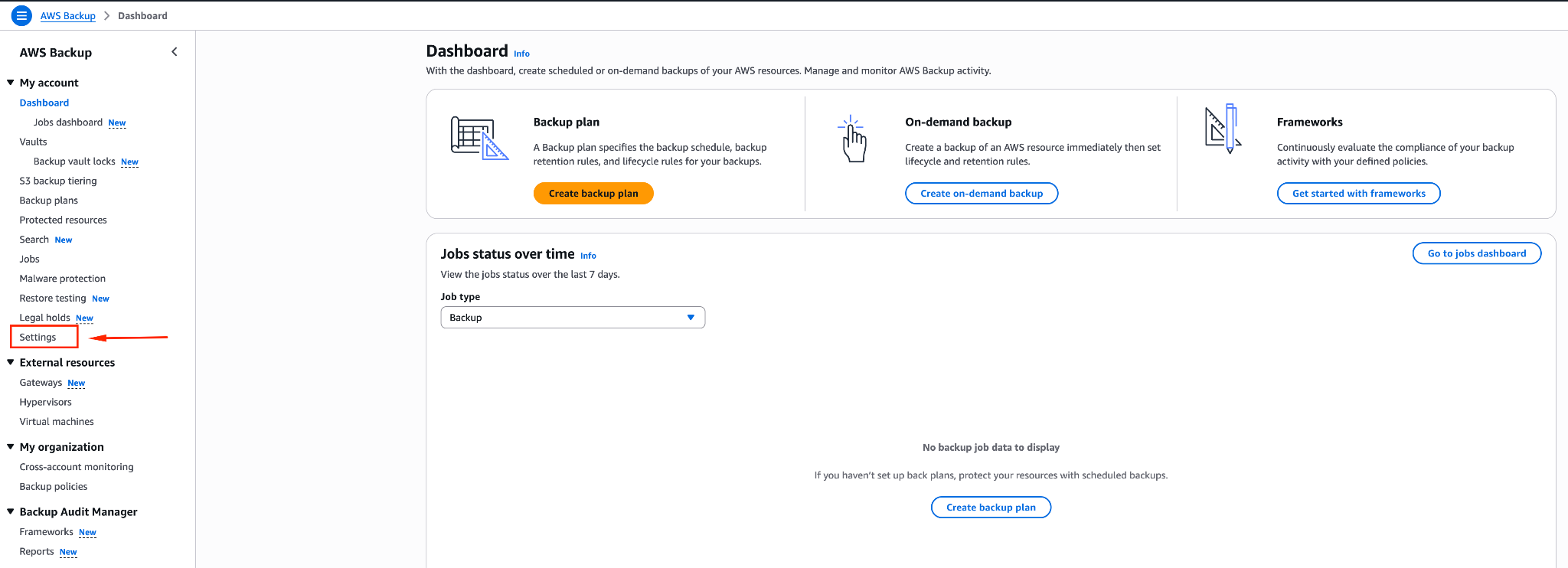
From the AWS Console, navigate to the AWS Backup service. In the left-hand menu, click Settings.
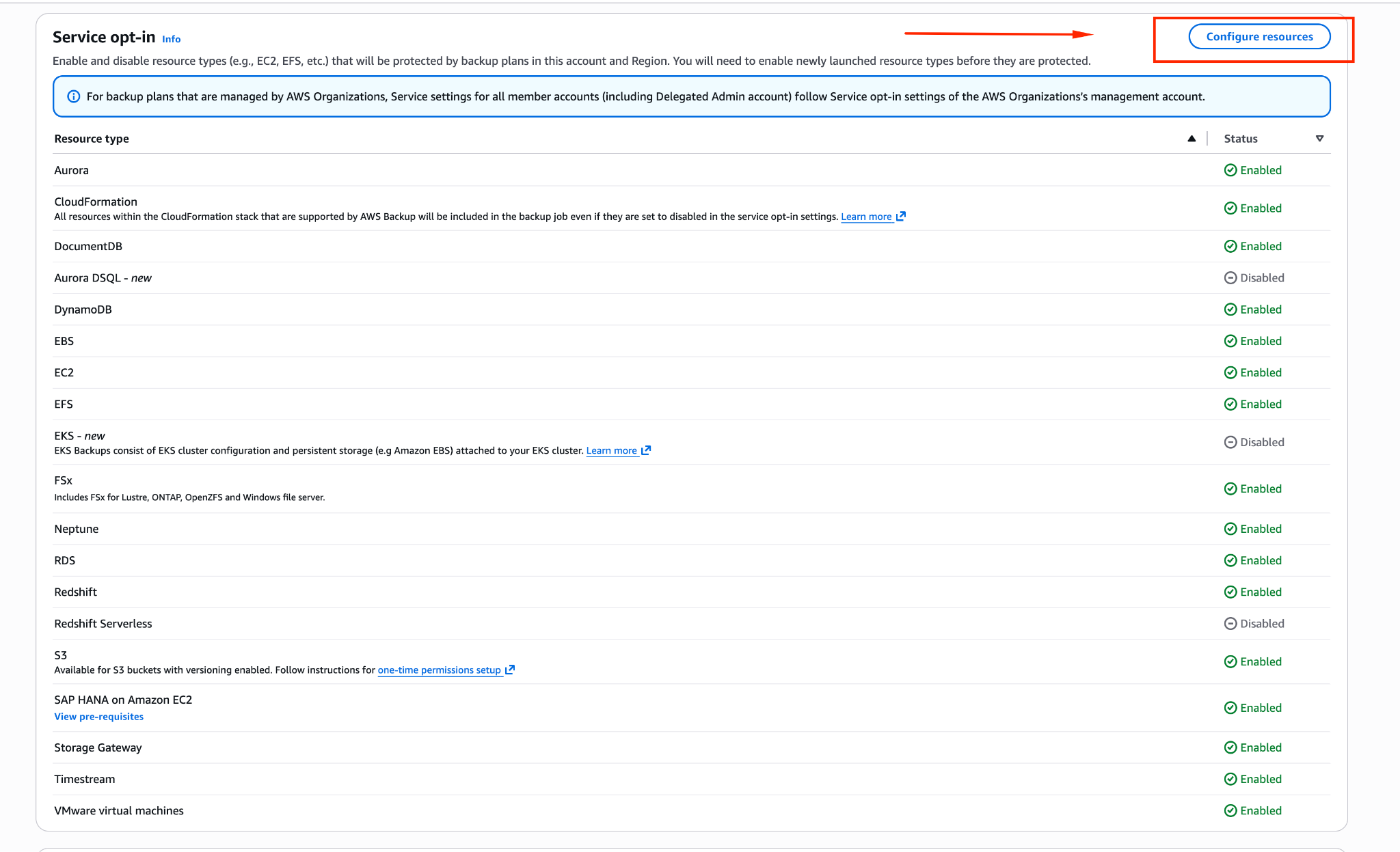
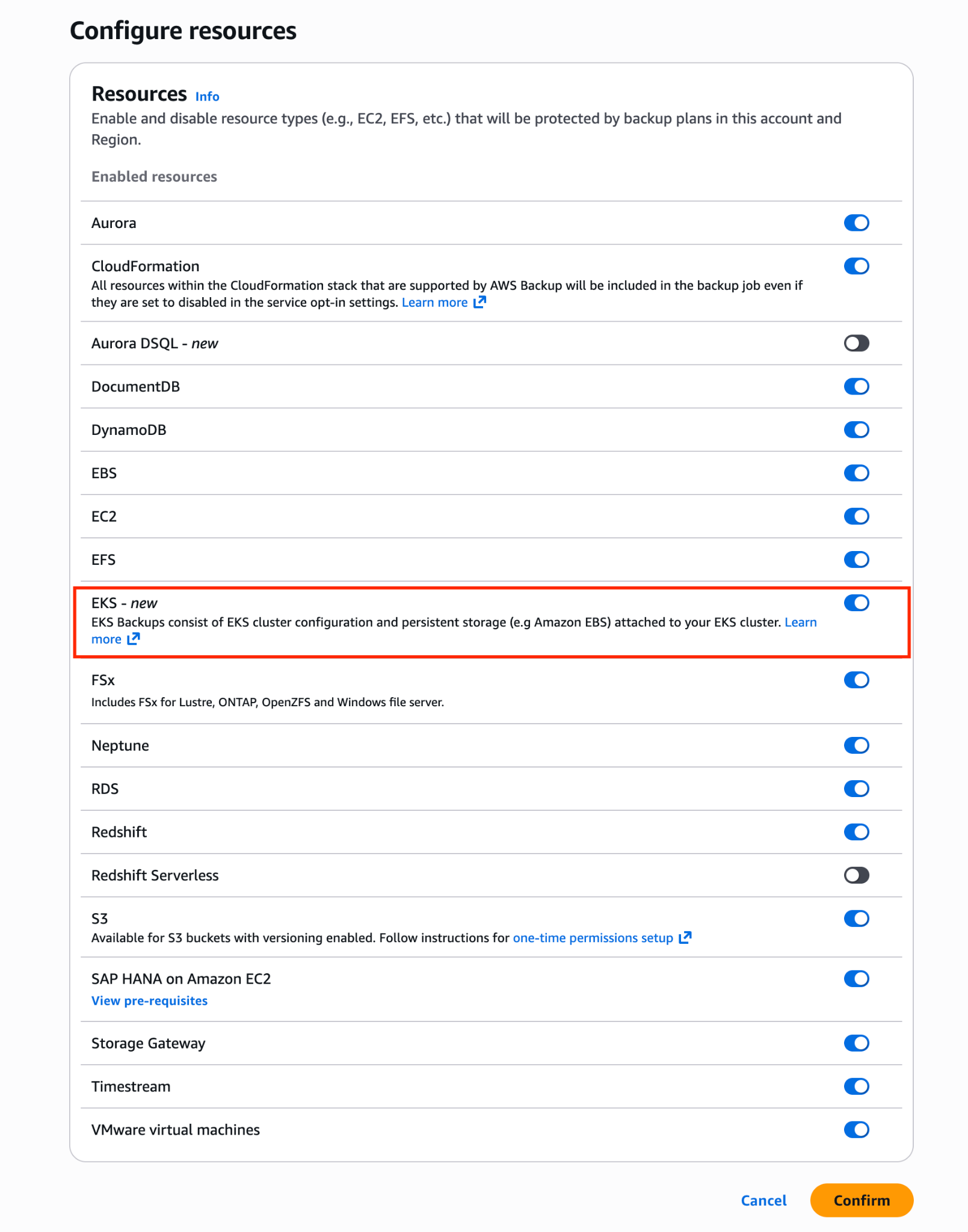
AWS Backup is disabled for Amazon EKS by default. Click Configure resources in the upper right corner, enable EKS - new from the Resource list, and save the changes.
After this step, EKS clusters become protected resources within AWS Backup and can be selected on the Create on-demand backup screen.
6.4.2 Starting an On-Demand Backup for an Existing EKS Cluster
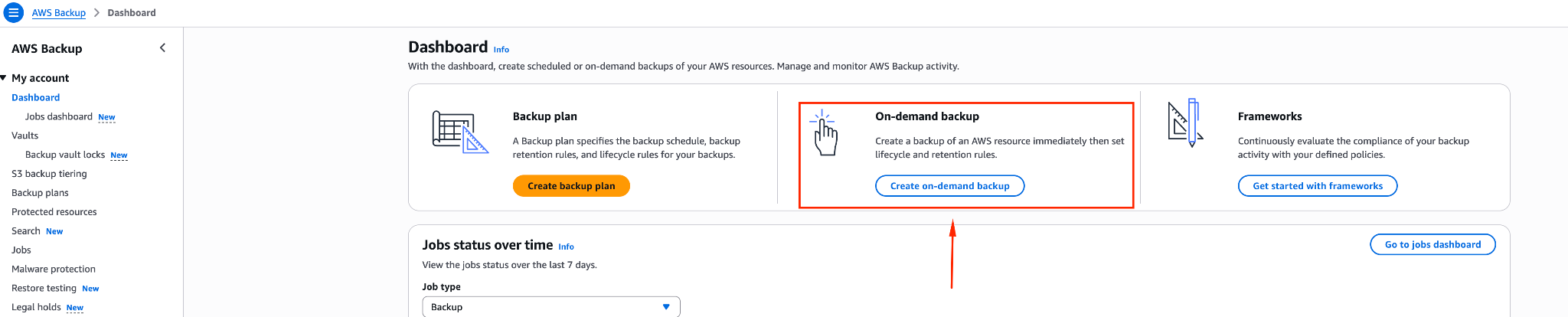
To take a backup of the existing cluster, click the Create on demand backup button from the AWS Backup Dashboard screen.
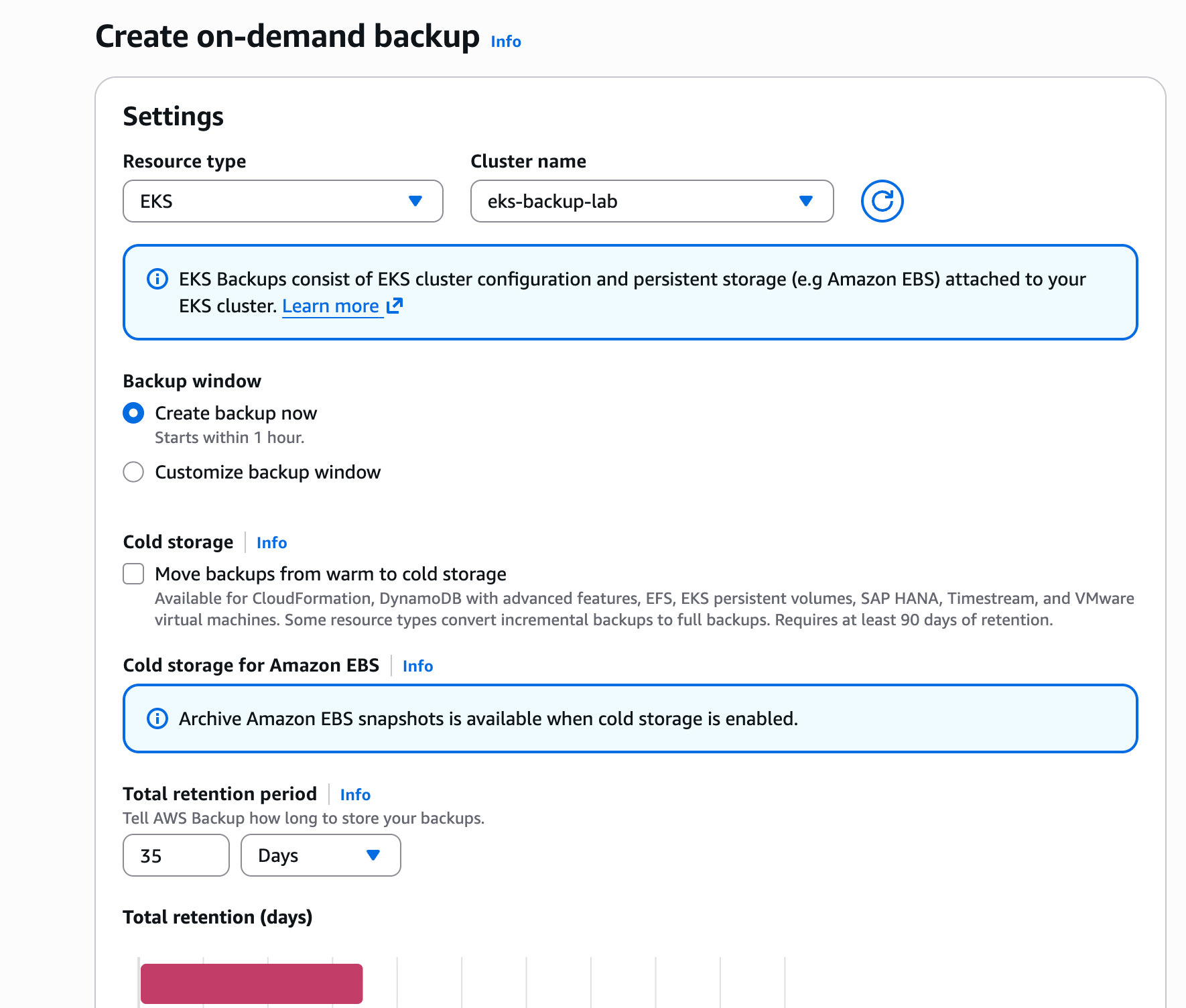
On the screen that opens, make the following selections:
- Resource type: EKS
- Cluster name: The existing EKS cluster you want to back up (eks-backup-lab)
- Backup window: Create a backup now
Then proceed to create the backup.
6.4.3 IAM Role Issue and Creating a Custom Role
When proceeding with the existing (default) IAM role, an authorization error occurs.
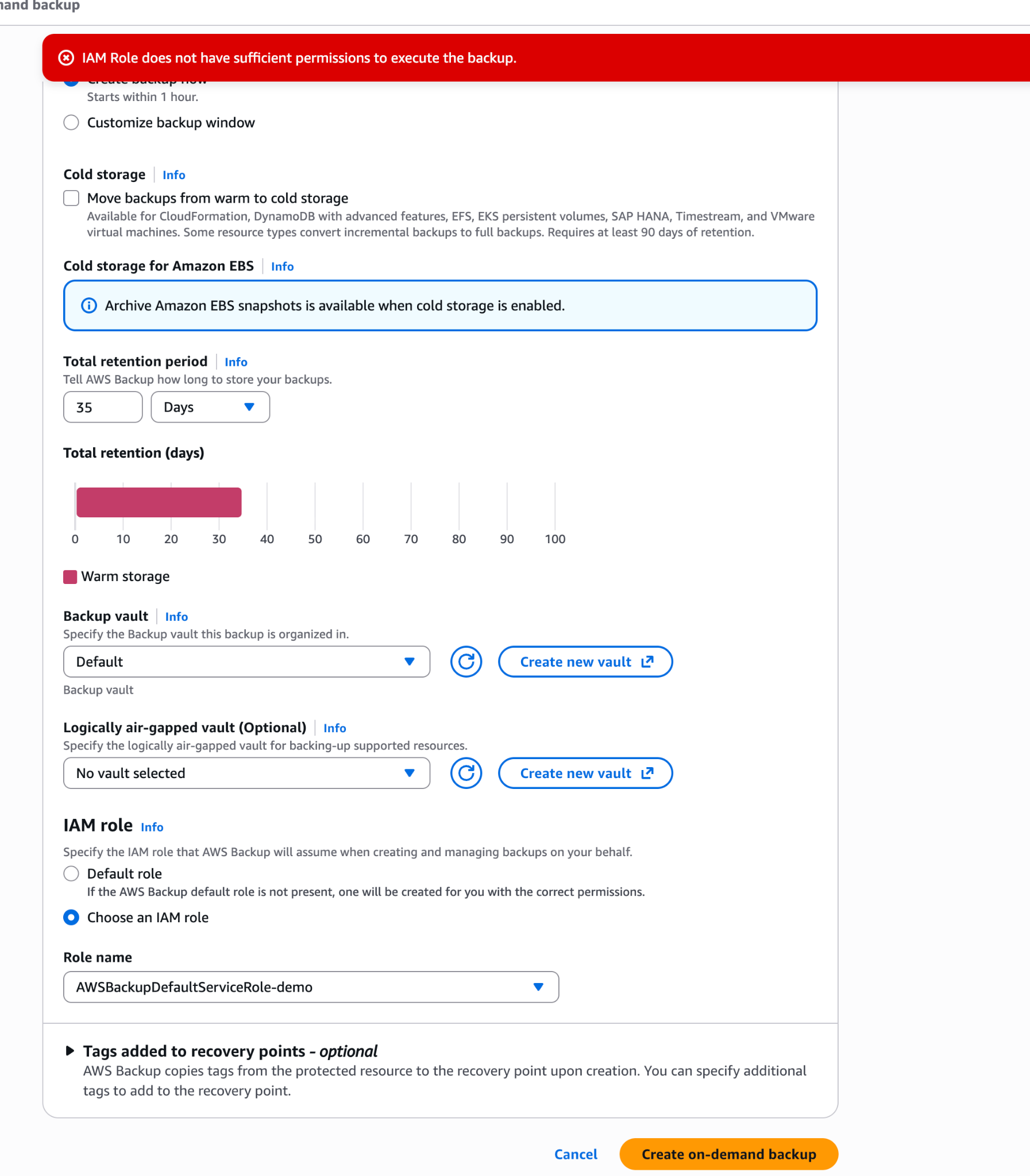
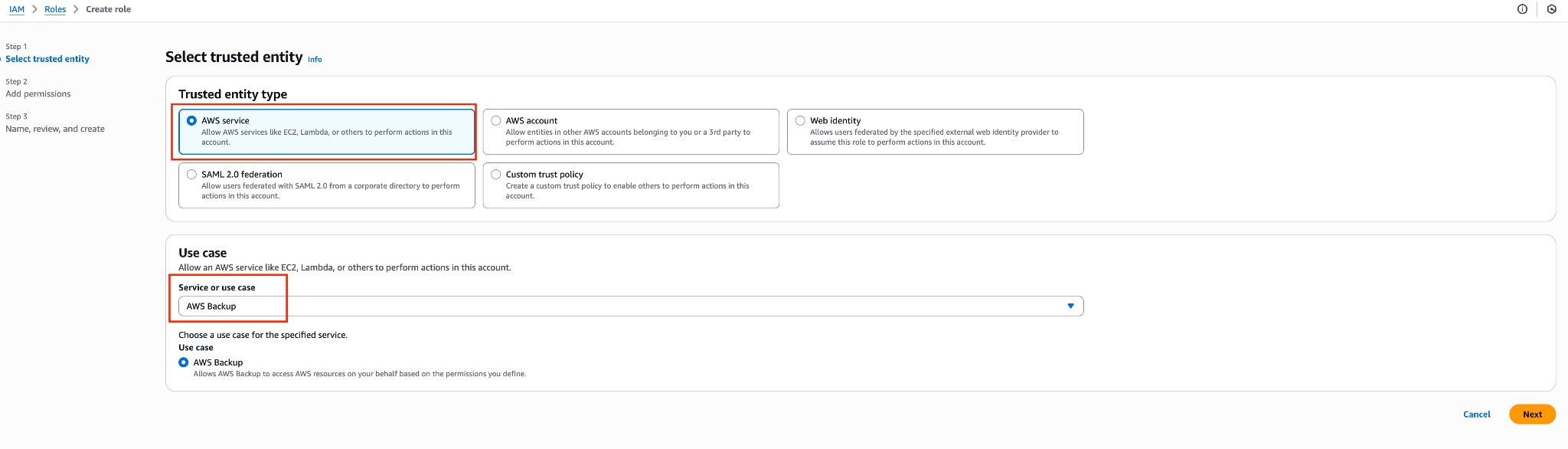
For this reason, we create a custom IAM role for AWS Backup.
While creating the IAM role, select:
- Trusted entity: AWS service
- Service: AWS Backup
This role will be used to grant AWS Backup the required permissions to back up EKS resources.
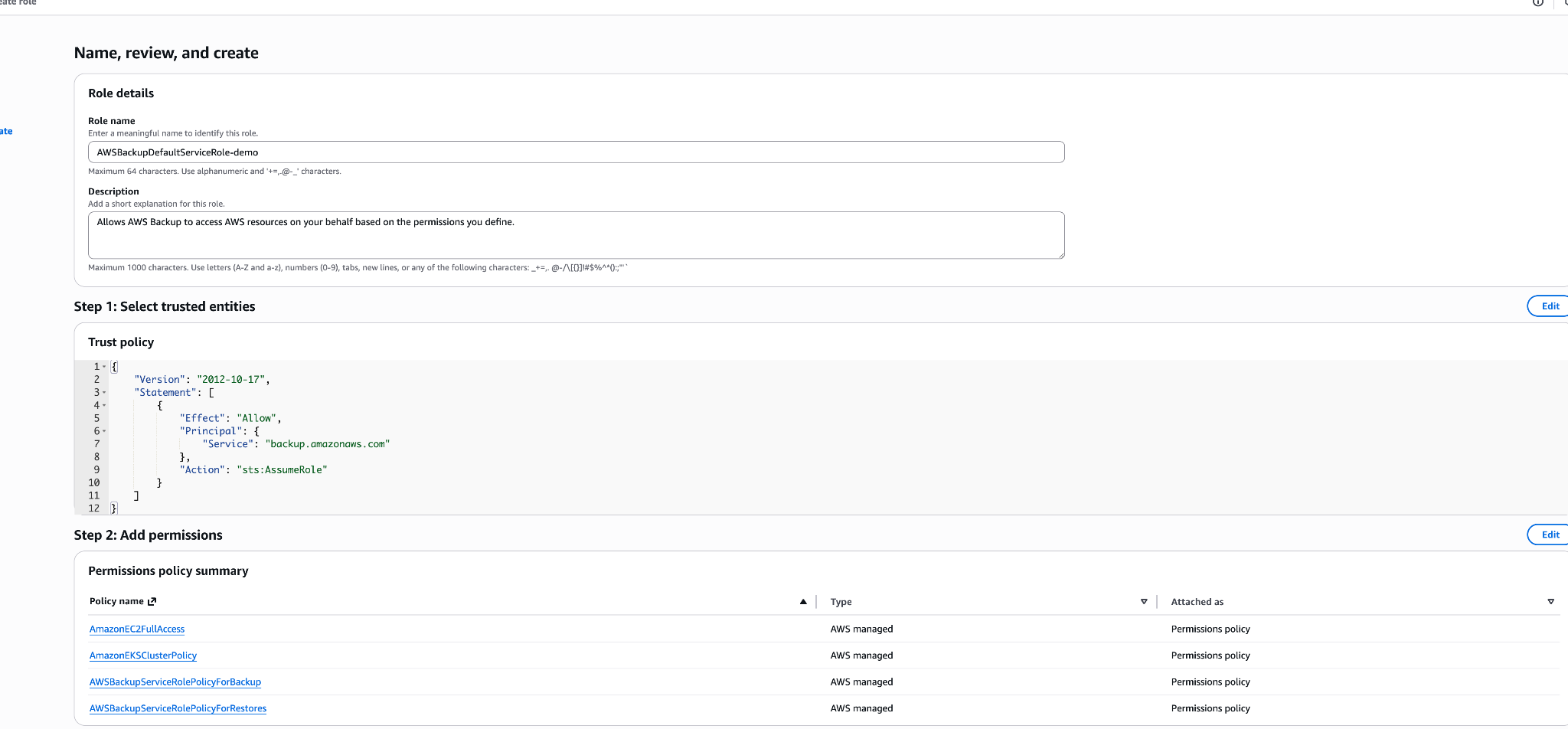
The IAM role used in this hands-on has the following policies attached:
AWSBackupServiceRolePolicyForBackup
AWSBackupServiceRolePolicyForRestores
AmazonEKSClusterPolicy
AmazonEC2FullAccess
Since this is a demo environment, AmazonEC2FullAccess was used. In real production environments, these permissions should be tightened and configured according to the principle of least privilege.
Note: If the EKS backup scope includes only EBS or EFS backed Persistent Volumes, no additional S3 policy is required. However, if Amazon S3 buckets are also included in the EKS backup scope, the following policy must be attached to the IAM role in addition to the existing permissions: AWSBackupServiceRolePolicyForS3Backup
After attaching the IAM role, we restart the backup operation.
6.4.4 Monitoring Backup Jobs
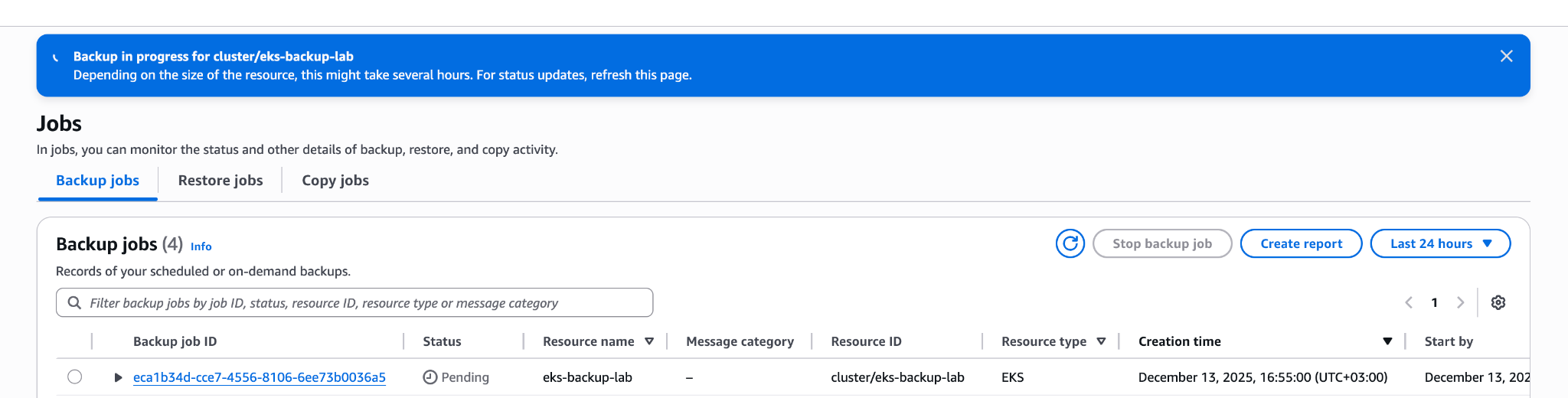
After the backup is initiated, its status can be monitored from the Jobs screen. In the initial phase, the job status appears as Pending or Running.
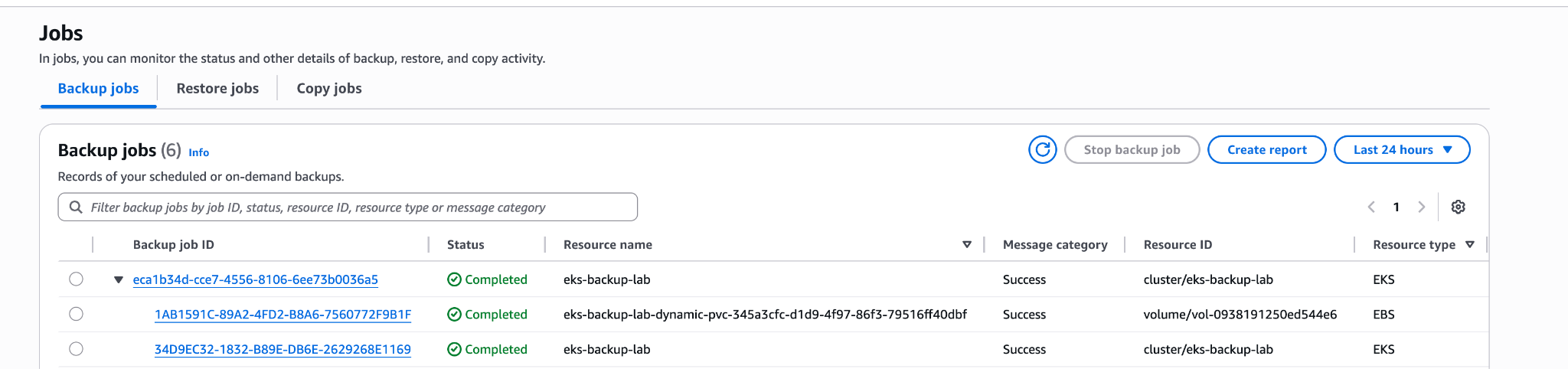
Once the operation is completed, the job status is displayed as Completed.
6.4.5 Deletion Scenario (Disaster Simulation)
After the backup operation is completed, we simulate a failure scenario by deleting the namespace that was backed up.
kubectl delete namespace demo
kubectl get namespaces
With this action, we can clearly verify that the namespace named demo no longer exists.
6.4.6 Restore Operation
To restore the backup taken with AWS Backup, we proceed to the restore step. First, in the AWS Backup Console, click Protected resources from the left hand menu and select the EKS cluster for which the backup was created.

Then, click the Restore button located in the upper right corner.
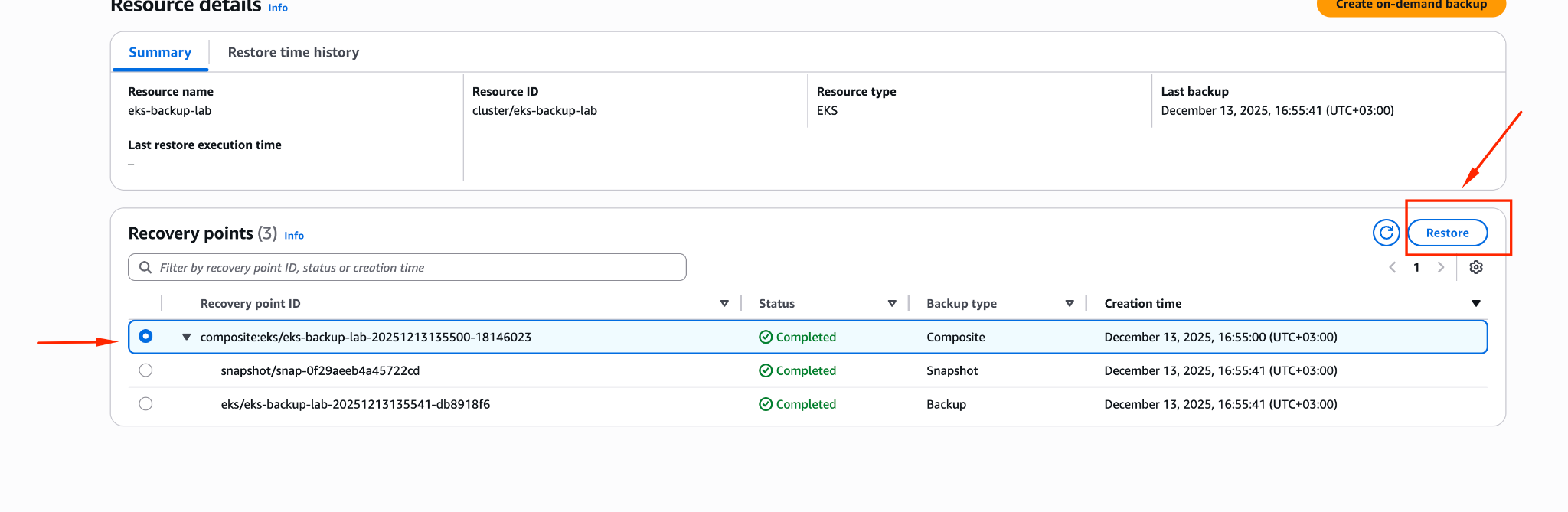
On the screen that opens, click Configure recovery settings in the lower right corner to customize the restore scenario in detail.
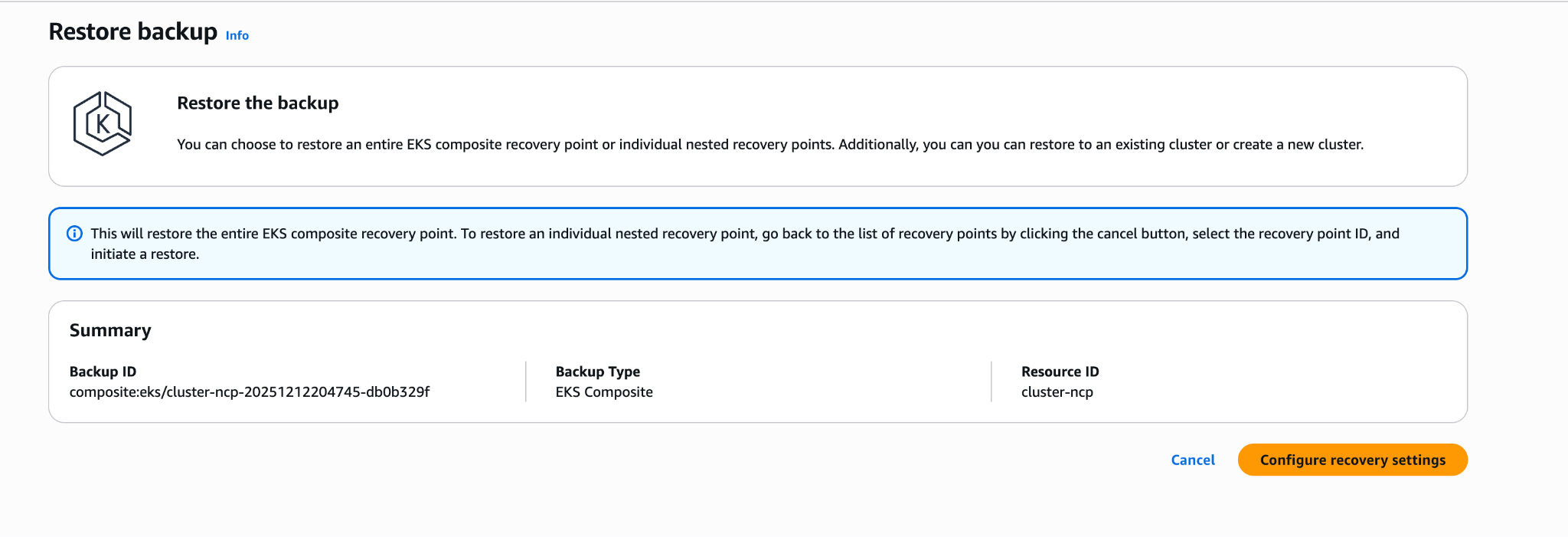
6.4.6.1 Understanding Restore Options
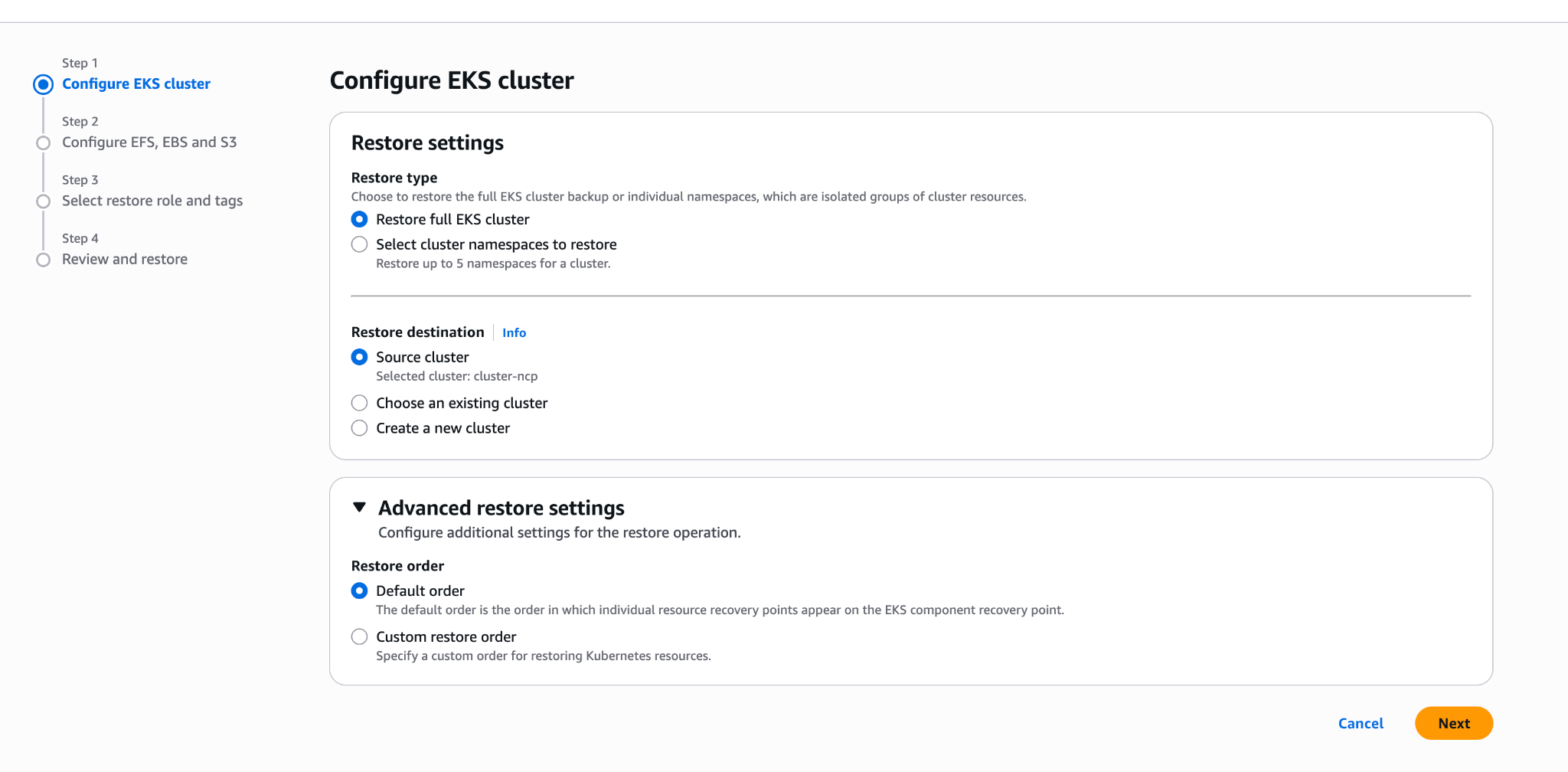
This step is the most critical phase where the configurations that directly determine AWS Backup's restore behavior are defined. The scope and target of the restore operation are specified here; therefore, this screen ultimately determines how the restore will behave and what the final outcome will be.
During the restore process, the first decision is the restore scope. For EKS, AWS Backup offers two different scopes: restoring the entire EKS cluster or restoring only specific namespaces. The full EKS cluster restore option provides a holistic recovery scenario that includes the cluster state and its associated resources, whereas namespace level restore is intended for more targeted and limited interventions.
Another critical selection is the restore target, meaning the destination environment where the restore will be applied. The restore operation can be performed on an existing EKS cluster, or it can be directed to a new EKS cluster that AWS Backup provisions from scratch. This choice forms the foundation of the restore strategy, especially in Disaster Recovery scenarios.
In this hands-on exercise, we perform the restore operation on an existing EKS cluster using the full EKS cluster restore scope. The objective is to clearly observe that deleted or missing resources are restored to the existing cluster in a non destructive manner. The restore scenario that creates a new EKS cluster from a backup will be covered under a separate section later in the blog.
6.4.6.2 Selecting the Availability Zone for EBS
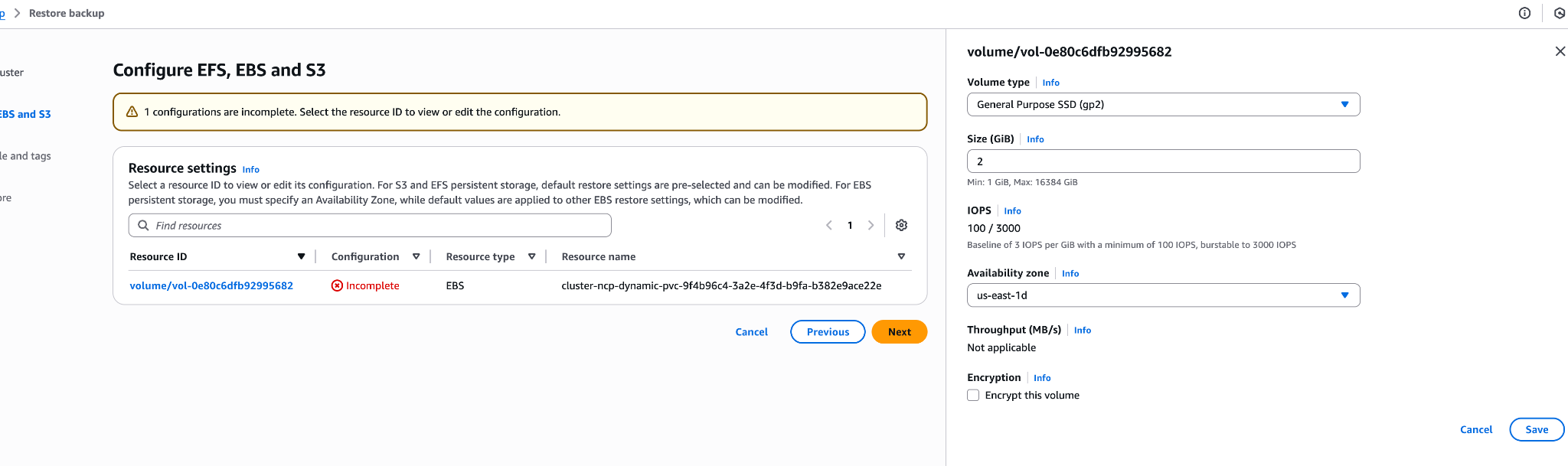
The warning encountered on this screen during the restore process is not an error; on the contrary, it reflects AWS Backup's expected and correct behavior. The message displayed:
"For EBS persistent storage, you must specify an Availability Zone."
This indicates that the Availability Zone (AZ) must be explicitly specified when restoring EBS backed persistent storage.
During the restore operation, AWS Backup is aware of the EKS cluster state and the associated EBS snapshots. However, it does not make automatic assumptions about which Availability Zone the EBS volumes should be recreated in. The primary reason for this is that EBS volumes are AZ-bound resources; each EBS volume is tied to a specific Availability Zone and cannot be directly used in a different AZ. For this reason, AWS Backup explicitly requires the user to specify where the nodes will run during the restore process.
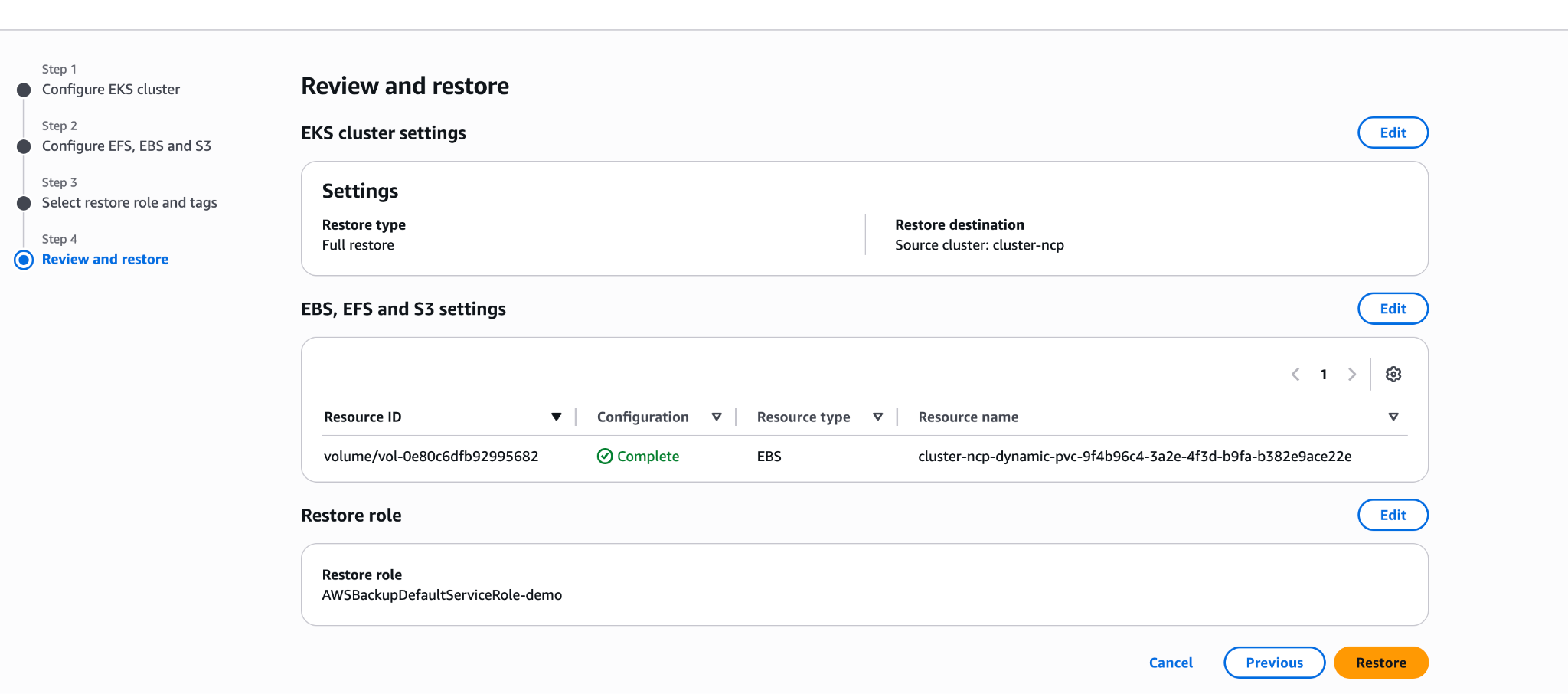
At this stage, the required action is straightforward. In the restore screen, the listed EBS resource entry (for example, volume/vol-0e80c6dfb92995682) is selected. This reveals a configuration section where the Availability Zone (Required) field becomes visible. Here, the Availability Zone in which the worker nodes of the target EKS cluster are running is selected (for example, us-east-1d).
After selecting the correct AZ, the configuration is saved using Save, and the restore process continues with the Next step. The restore operation cannot proceed without this selection, as AWS Backup deliberately prevents creating an EBS volume in an incorrect Availability Zone, which could otherwise lead to scheduling or attachment issues.
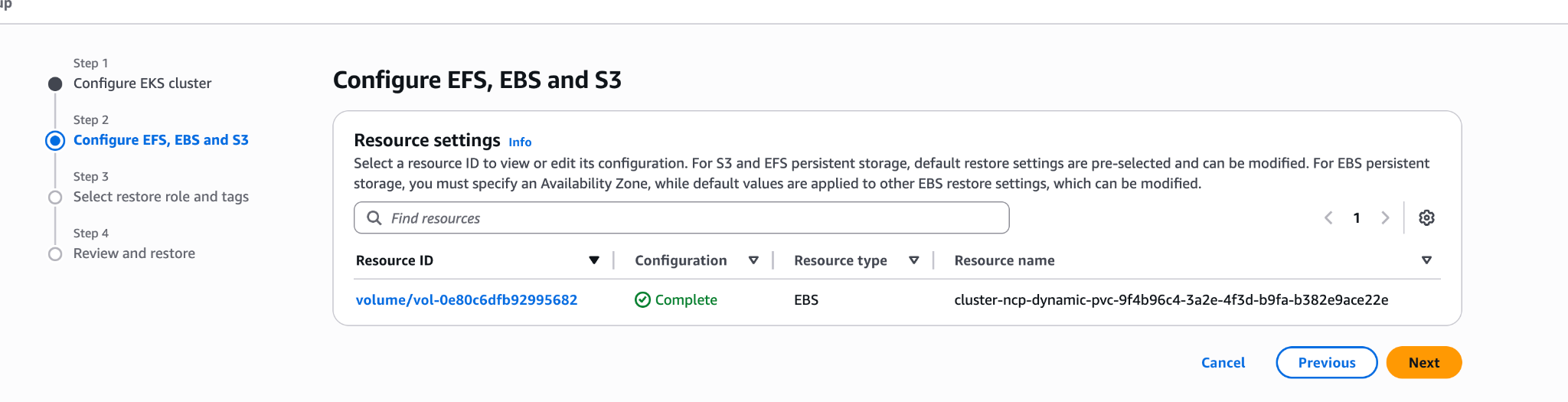
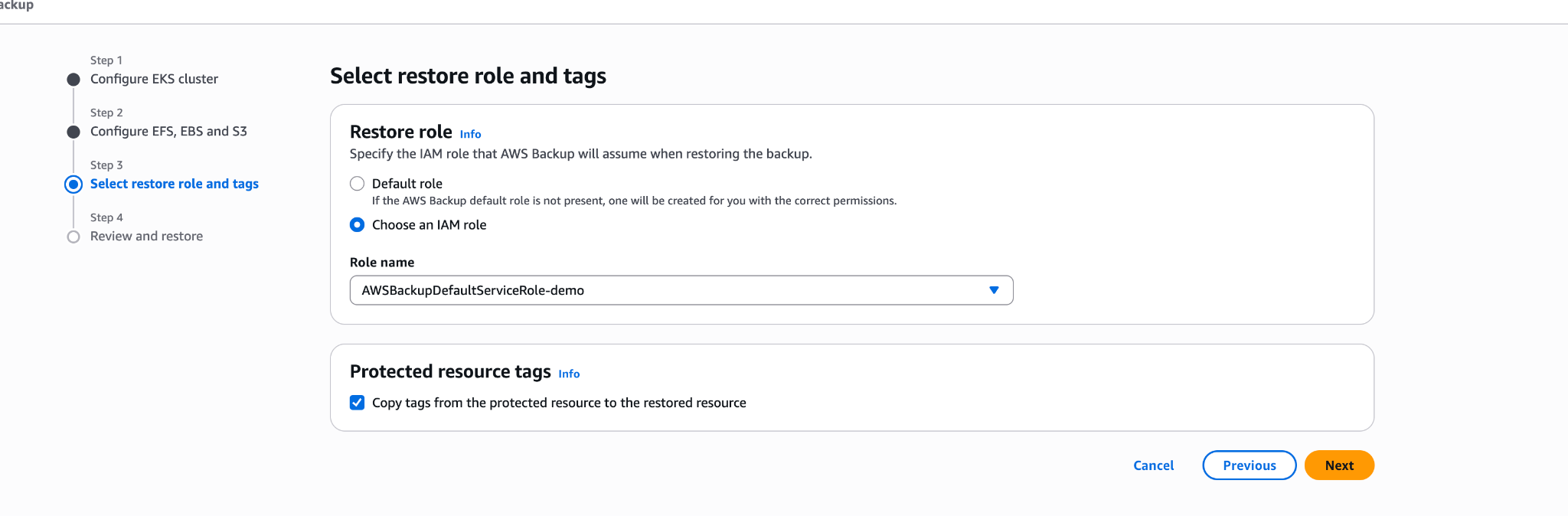
6.4.6.3 Selecting the Restore IAM Role
In this step, we select the IAM role that was used during the backup process or specifically created for the restore operation. After selecting the role, we click Next to proceed.
6.4.6.4 Starting the Restore Operation
On the final screen, after reviewing all the settings, we click the Restore button in the lower right corner. The restore operation is then initiated.
6.4.6.5 Monitoring the Restore Process
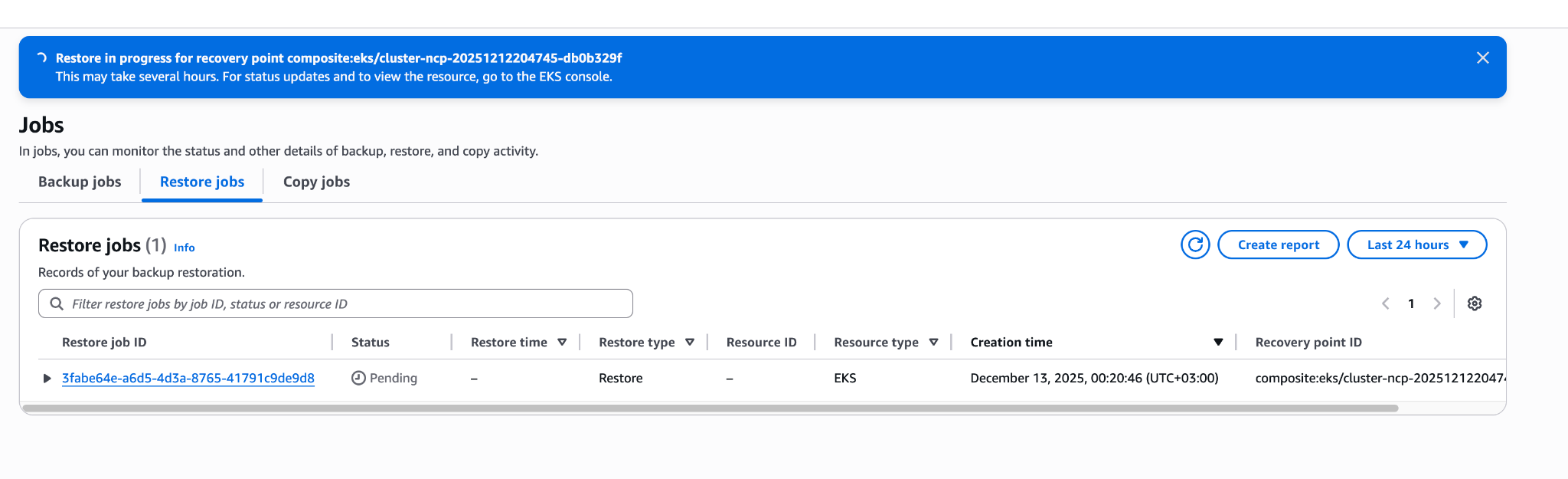
After the restore operation is initiated, its progress can be monitored from AWS Backup - Jobs - Restore jobs, where the status transitions through Pending - Running - Completed. Once the process is complete, it is verified that the namespaces, Kubernetes objects, and persistent volume data have been successfully restored.
6.4.7 Post Restore Validation
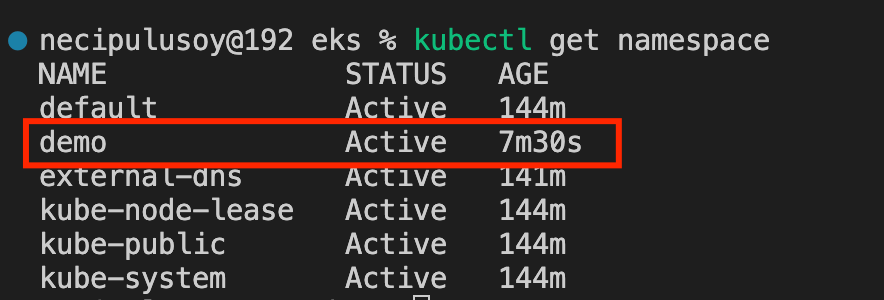
Once the restore operation is complete, we first perform validation at the namespace level. We observe that the previously deleted demo namespace has been automatically recreated. This confirms that AWS Backup has successfully restored the EKS cluster state.
Then, we verify the Kubernetes objects within the namespace and confirm that all resources have been fully restored as part of the restore operation. Finally, to test whether the stateful data has been recovered, we connect to the pod and check the file that was written earlier.
kubectl exec -n demo -it <pod-name> -- cat /data/test.txtWe observe that the file contents have been fully restored. This clearly confirms that AWS Backup has successfully restored the EBS backed Persistent Volume data using native snapshots.


This scenario clearly demonstrates that even when a namespace has been completely deleted, Kubernetes objects and persistent data can be fully restored to the exact state captured at the time of the backup. This behavior represents one of the most powerful and distinguishing capabilities that AWS Backup offers for disaster recovery scenarios in EKS environments.
7. Scenario 2 - Restoring a Backup to a Brand New EKS Cluster
In this scenario, we use the same backup to create a brand new EKS cluster. We follow the exact same restore steps as in the previous hands-on exercise; the only difference is in the Configure EKS cluster step, where instead of selecting an existing cluster, we choose to create a new one.
At this stage, we assign a name to the new cluster and select the desired Kubernetes cluster version. All remaining steps proceed in the same manner as before.
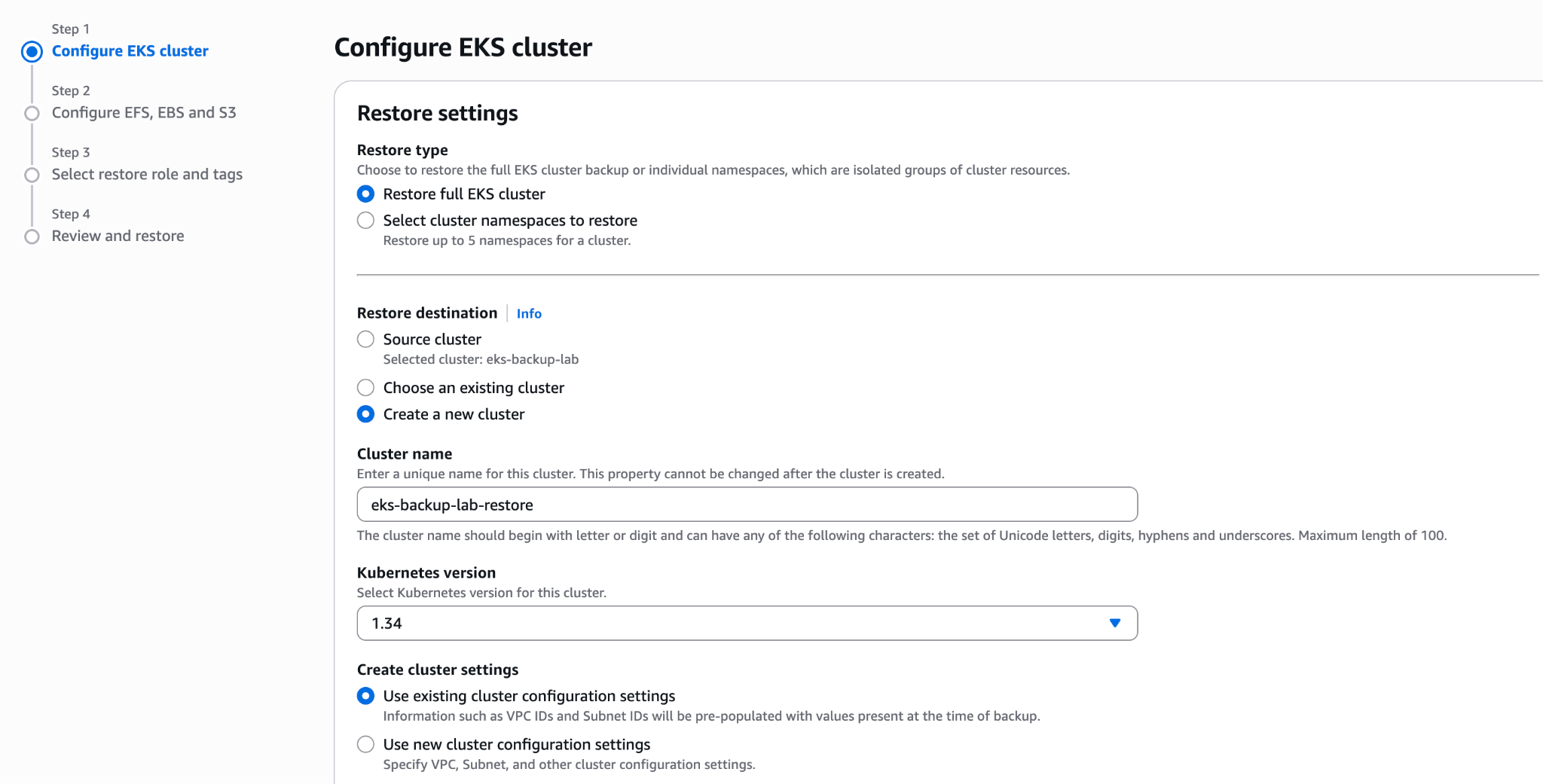
7.1 Verifying the Creation of the New Cluster
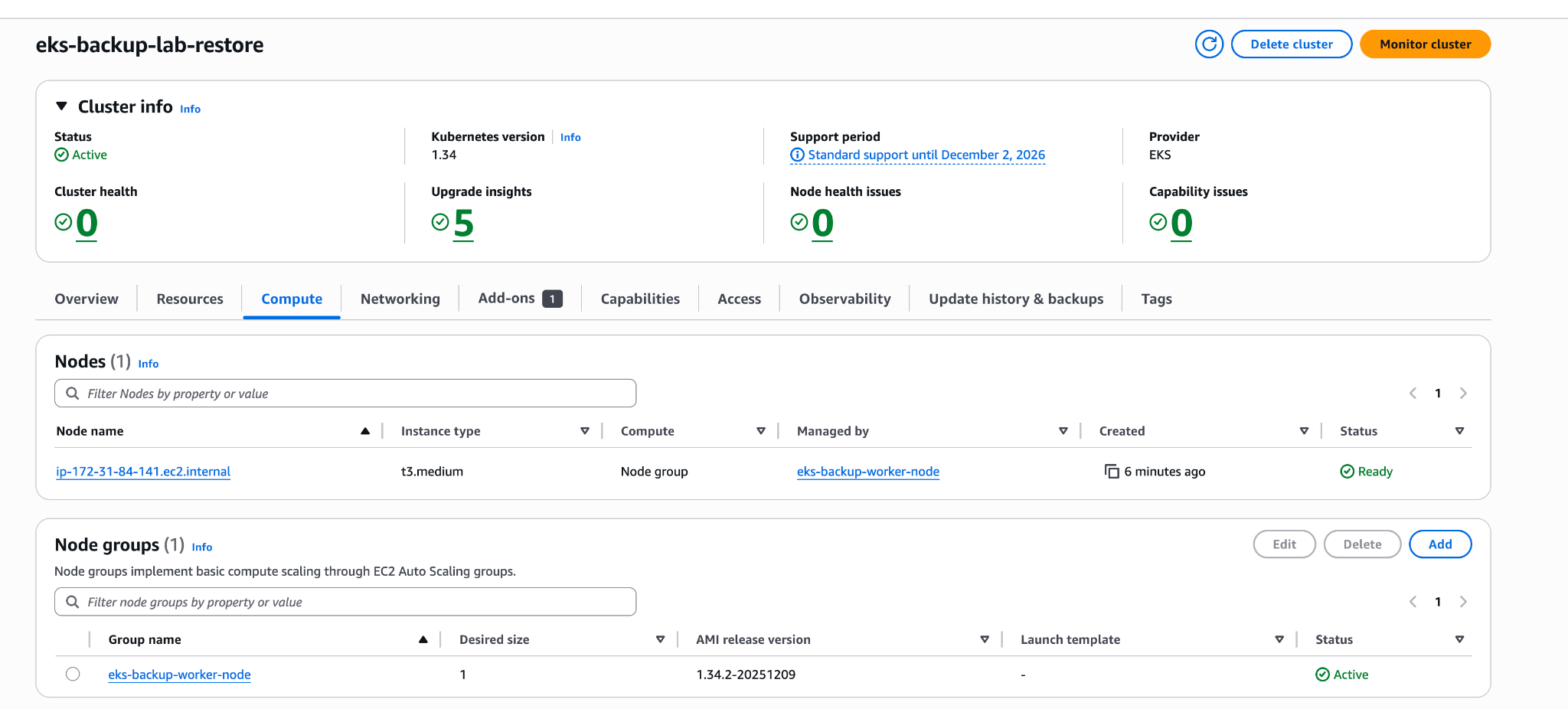
Once the restore operation is completed, the Clusters screen in the EKS Console shows both the original eks-backup-lab cluster and the new cluster created during the restore process, named eks-backup-lab-restore. When the new cluster reaches the Active state, the restore process is considered successfully completed.

The restore operation has completed, and the new cluster has been successfully created.

As with the previous cluster, this new cluster has worker nodes with the same instance type and count.
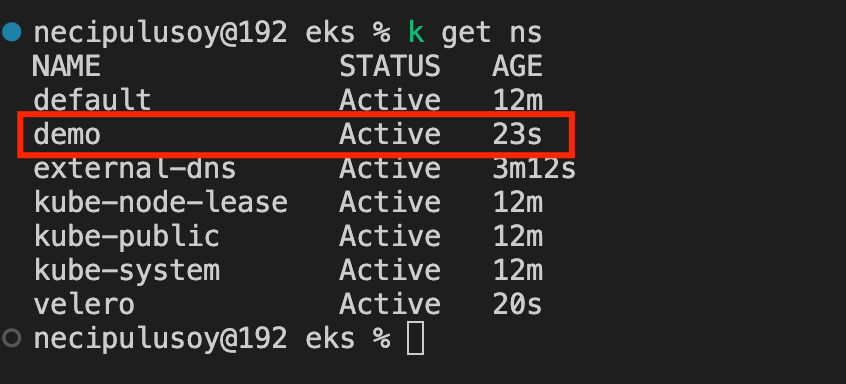
7.2 Verifying Namespaces and Objects in the New Cluster
After connecting to the new cluster and performing the validation checks, we can see that the demo namespace has been restored automatically. All objects are up and running.
7.3 Verifying Persistent Volume Data (New Cluster)
After exec-ing into the pod and checking the file, we can see that the data has been preserved.

8. Scenario 3 - AWS Backup Non-Destructive Restore Behavior
The goal of this section is to demonstrate the following: when AWS Backup performs a restore on an existing EKS cluster, it does not revert changes made after the backup was taken.
At this point, an important distinction must be emphasized: for AWS Backup, a restore operation does not imply a rollback. Instead of reverting the cluster to a previous state, the restore process follows a repair-oriented approach that focuses solely on restoring missing or lost resources while preserving the current cluster state.
8.1 Initial State
The demo namespace and the application are running:
kubectl get deploy -n demo

NAME                        READY   UP-TO-DATE   AVAILABLE
my-ebs-deployment   1/1           1                      1
The replica count is 1. At this point, an AWS Backup has already been taken.
8.2 Post Backup Changes
8.2.1 Creating a ConfigMap
kubectl create configmap restore-test --from-literal=key=added-after-restore -n demo8.2.2 Increasing the Replica Count
kubectl scale deployment my-ebs-deployment --replicas=2 -n demo
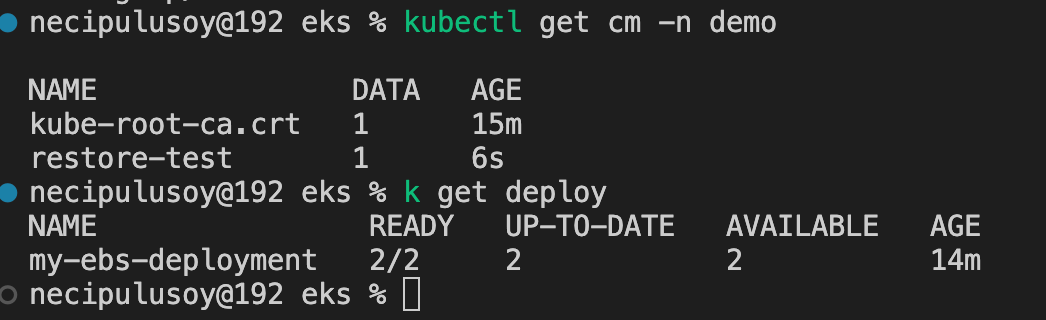
Both of these changes were made after the backup was taken.
8.3 Restore (Existing Cluster)
We now initiate the restore operation using AWS Backup. From the AWS Backup Console, we navigate to Protected resources, select the relevant EKS backup, and proceed to the Restore step. As the restore target, we choose the existing EKS cluster option and select the eks-backup-lab cluster.
After the restore operation starts, the process is monitored in Jobs - Restore jobs. Once the operation is complete, the restore job transitions to the Completed state.
8.4 Post Restore Validation
8.4.1 ConfigMap Verification
kubectl get cm -n demoThe restore operation did not delete the ConfigMap created after the backup.
8.4.2 Replica Count Verification
kubectl get deploy -n demoThe replica count was not reverted to 1.
8.5 What Does This Behavior Demonstrate?
This behavior clearly demonstrates that AWS Backup follows a non destructive restore model when restoring to an existing EKS cluster. Changes made after the backup such as newly created ConfigMaps or updated replica counts are preserved and are not rolled back. Instead of reverting the cluster to a historical state, AWS Backup focuses on repairing missing or deleted components while maintaining the current cluster state. This confirms that AWS Backup restore operations are designed for safe recovery in production environments, not for state rollback.
9. Velero Hands-On: A Kubernetes Native Backup and Restore Experience
Unlike AWS Backup, Velero is not a service managed by AWS; instead, it operates as an application running inside the Kubernetes cluster itself. As a result, every hands-on exercise performed with Velero requires a Kubernetes native perspective.
In this section, we test backup and restore scenarios using Velero on the same EKS cluster and the same demo application that were used in the AWS Backup hands-on. The goal is to observe, in practice, the differences in restore behavior between the two solutions.
9.1 Creating an S3 Bucket for Velero
While backup storage is automatically managed by AWS in AWS Backup, Velero requires the user to define and manage the bucket where backups are stored. For this reason, we first created an S3 bucket for Velero.
export REGION=us-east-1
export BUCKET=velero-backup-$(aws sts get-caller-identity --query Account --output text)-$REGION

aws s3api create-bucket \
  --bucket $BUCKET \
  --region $REGION
9.2 Creating an IAM Policy for Velero
Velero requires access to AWS APIs in order to take EBS snapshots and write backups to S3.
cat > velero-policy.json <<EOF
{
  "Version": "2012-10-17",
  "Statement": [
    {
      "Effect": "Allow",
      "Action": [
        "ec2:DescribeVolumes",
        "ec2:DescribeSnapshots",
        "ec2:DescribeAvailabilityZones",
        "ec2:CreateSnapshot",
        "ec2:DeleteSnapshot",
        "ec2:CreateVolume",
        "ec2:DeleteVolume",
        "ec2:AttachVolume",
        "ec2:DetachVolume",
        "ec2:ModifyVolume",
        "ec2:CreateTags"
      ],
      "Resource": "*"
    },
    {
      "Effect": "Allow",
      "Action": [
        "s3:GetObject",
        "s3:PutObject",
        "s3:DeleteObject",
        "s3:AbortMultipartUpload",
        "s3:ListMultipartUploadParts"
      ],
      "Resource": "arn:aws:s3:::velero-backup-<Account_ID>-us-east-1/*"
    },
    {
      "Effect": "Allow",
      "Action": [
        "s3:ListBucket",
        "s3:GetBucketLocation"
      ],
      "Resource": "arn:aws:s3:::velero-backup-<Account_ID>-us-east-1"
    }
  ]
}
EOF
Creating the policy:
aws iam create-policy \
  --policy-name VeleroAccessPolicy \
  --policy-document file://velero-policy.json
9.3 Using IRSA (IAM Role for Service Account)
For Velero, we do not use an IAM user with access keys. Instead, we use IAM Roles for Service Accounts (IRSA), which is a best practice for EKS.
Adding the OIDC provider:
eksctl utils associate-iam-oidc-provider \
  --cluster eks-backup-lab \
  --region us-east-1 \
  --approve
Creating the ServiceAccount and IAM Role:
export CLUSTER_NAME=eks-backup-lab
export ACCOUNT_ID=$(aws sts get-caller-identity --query Account --output text)

eksctl create iamserviceaccount \
  --cluster $CLUSTER_NAME \
  --namespace velero \
  --name velero-server \
  --role-name eks-velero-role \
  --attach-policy-arn arn:aws:iam::$ACCOUNT_ID:policy/VeleroAccessPolicy \
  --approve
9.4 Adding the Velero Helm Repository
helm repo add vmware-tanzu https://vmware-tanzu.github.io/helm-charts
helm repo update
9.5 Velero values.yaml
configuration:
  backupStorageLocation:
    - name: default
      provider: aws
      bucket: velero-backup-<Account_ID>-us-east-1
      default: true
      config:
        region: us-east-1
  volumeSnapshotLocation:
    - name: default
      provider: aws
      config:
        region: us-east-1

credentials:
  useSecret: false

initContainers:
  - name: velero-plugin-for-aws
    image: velero/velero-plugin-for-aws:v1.13.1
    imagePullPolicy: IfNotPresent
    volumeMounts:
      - mountPath: /target
        name: plugins

serviceAccount:
  server:
    create: false
    name: velero-server
    annotations:
      eks.amazonaws.com/role-arn: arn:aws:iam::<Account_ID>:role/eks-velero-role

kubectl:
  image:
    repository: docker.io/bitnamilegacy/kubectl
    tag: 1.27.16
9.6 Installing Velero on the Cluster
helm upgrade --install velero vmware-tanzu/velero \
  --namespace velero \
  --create-namespace \
  -f values.yaml
9.7 Demo Application (Same as AWS Backup)
Namespace:
kubectl create namespace demoPVC and Deployment:
apiVersion: v1
kind: PersistentVolumeClaim
metadata:
  name: my-ebs-pvc
  namespace: demo
spec:
  accessModes:
    - ReadWriteOnce
  resources:
    requests:
      storage: 2Gi
  storageClassName: gp3
---
apiVersion: apps/v1
kind: Deployment
metadata:
  name: my-ebs-deployment
  namespace: demo
spec:
  replicas: 1
  selector:
    matchLabels:
      app: nginx-ebs
  template:
    metadata:
      labels:
        app: nginx-ebs
    spec:
      containers:
        - name: app
          image: nginx
          volumeMounts:
            - name: ebs-volume
              mountPath: "/data"
      volumes:
        - name: ebs-volume
          persistentVolumeClaim:
            claimName: my-ebs-pvc
Writing data:
POD=$(kubectl get pod -n demo -l app=demo -o jsonpath='{.items[0].metadata.name}')
kubectl exec -n demo -it $POD -- sh -c 'echo "hello from velero" > /data/test.txt'
9.8 Taking a Velero Backup
velero backup create demo-backup \
  --include-namespaces demo
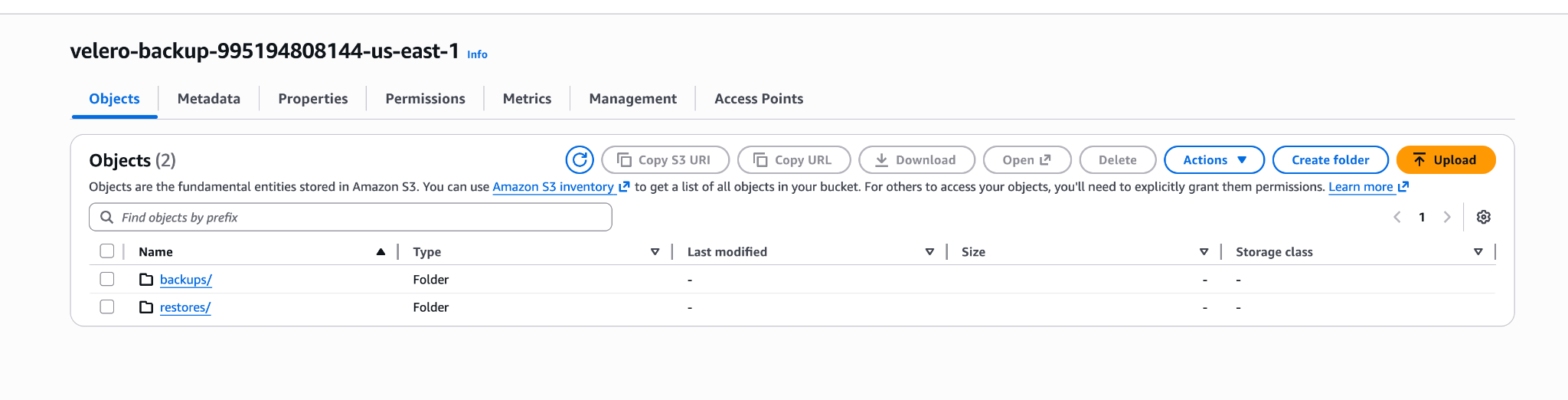
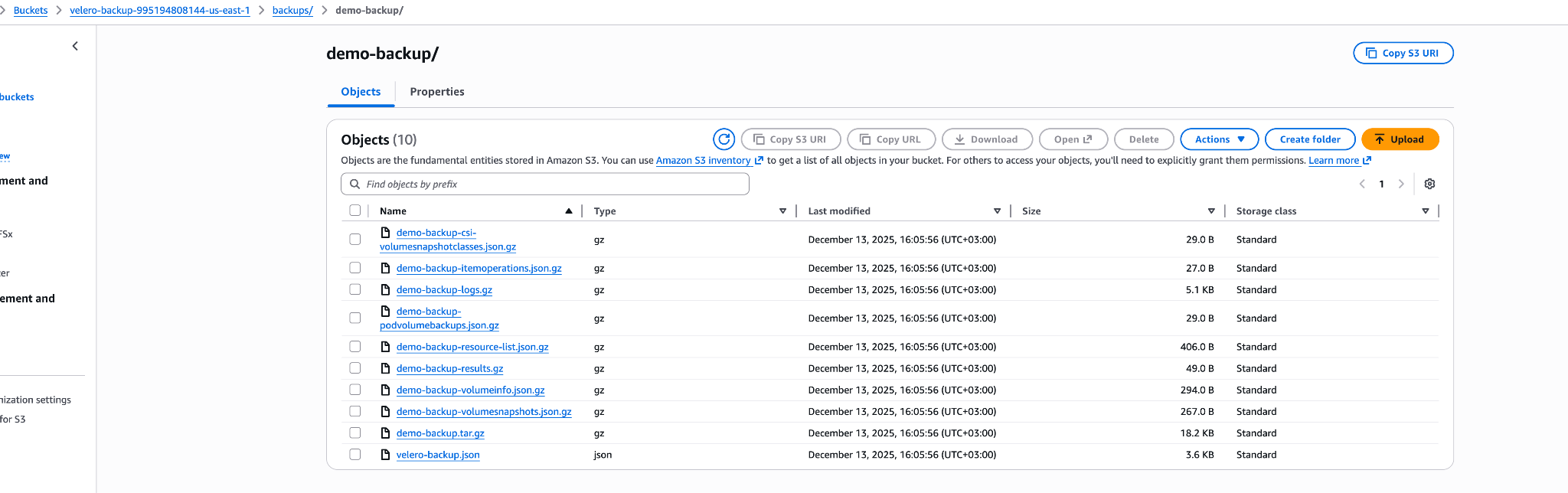
After verifying the results, we can see that the relevant backups have started to be stored in Amazon S3 and that snapshots of the EBS volumes have been created.
We can also see that snapshots of the EBS volumes have been created.

9.9 Disaster Scenario
kubectl delete namespace demo
kubectl get namespace
9.10 Velero Restore
velero restore create demo-restore \
  --from-backup demo-backup
Verification:
kubectl get ns demo
kubectl get pods -n demo
kubectl exec -n demo -it \
$(kubectl get pod -n demo -l app=demo -o jsonpath='{.items[0].metadata.name}') \
-- cat /data/test.txt
10. Hands-On - Velero Restore Behavior (Without Deleting the Namespace)
In this second Velero hands-on scenario, our goal is to clearly demonstrate the following: by default, a Velero restore operation can override existing Kubernetes resources. However, this behavior can be controlled using Velero's restore filtering and exclude mechanisms.
In this scenario, the namespace will not be deleted. We will observe how changes made after the backup are handled during the restore process.
10.1 Initial State (Reference State)
kubectl get deploy -n demo
kubectl get cm -n demo
10.2 Post-Backup Changes
10.2.1 Adding a ConfigMap
kubectl create configmap restore-test --from-literal=key=added-after-restore -n demo10.2.2 Increasing the Replica Count
kubectl scale deployment my-ebs-deployment --replicas=2 -n demo
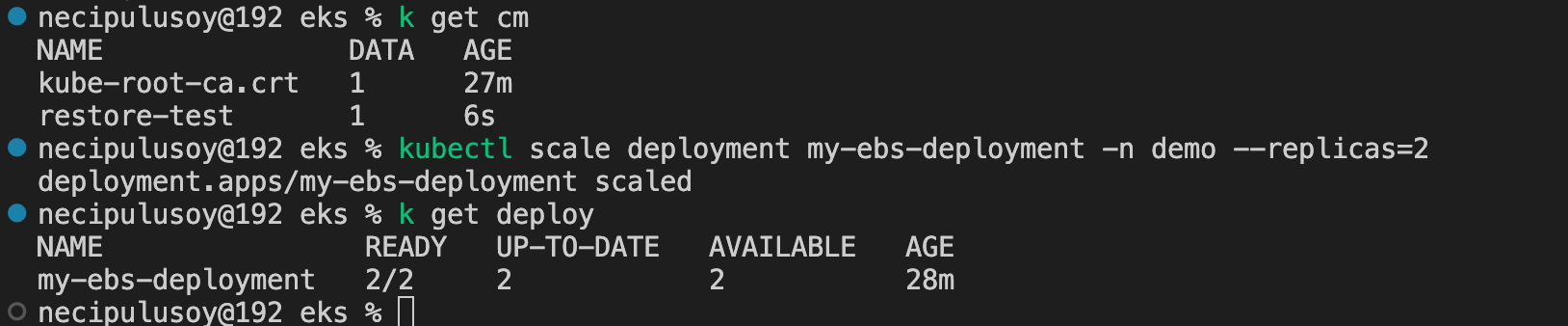
Important: Both of these changes were made after the backup was taken.
10.3 Default Velero Restore (Destructive Behavior)
Now, without deleting the namespace, we execute a standard restore.
velero restore create demo-restore-destructive \
  --from-backup demo-backup
10.3.1 Replica Verification
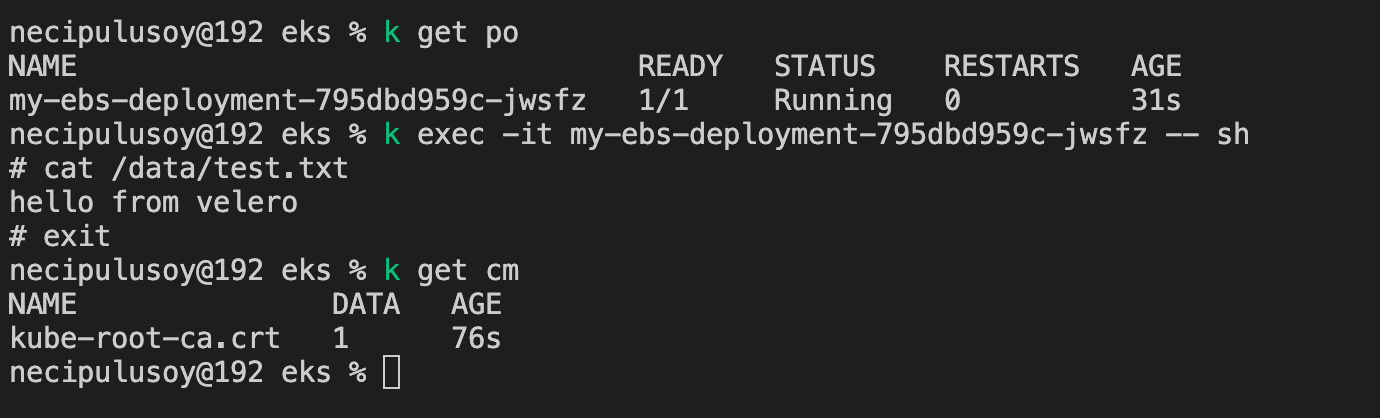
kubectl get deploy -n demoThe replica count has been reverted to 1.
10.3.2 ConfigMap Verification
kubectl get cm -n demoExpected result: The ConfigMap no longer exists.
10.3.3 What Does This Mean?
This hands-on clearly demonstrates the following about Velero restore behavior: Velero bases the restore process on the YAML definitions captured at the time the backup was taken. As a result, it can override existing Kubernetes objects. Changes made after the backup such as scaling operations or newly created ConfigMaps may be lost during the restore. This behavior is a deliberate design choice in Velero.
10.4 Controlled Restore: Compensating with Exclude Flags
One of Velero's important advantages is the ability to select which resources are restored during the restore process. This time, we perform the restore operation in the following way: Deployments are not restored, ConfigMaps are not restored, and only PVCs and pod data are brought back.
10.4.1 Restore with Excludes
velero restore create demo-restore-controlled \
  --from-backup demo-backup \
  --exclude-resources deployments,configmaps
10.5 Validation After Controlled Restore
10.5.1 Replica Verification
kubectl get deploy -n demoThe replica count has been preserved.
10.5.2 ConfigMap Verification
kubectl get cm -n demoExpected result: the restore test ConfigMap is still present.
10.6 The Critical Point Demonstrated by This Hands-On
This scenario clearly reveals Velero's restore philosophy: the default restore behavior can be destructive and may override the existing cluster state. However, by using specific flags, the restore behavior can be fine tuned and controlled. Velero restores workloads by recreating Kubernetes resources, which gives it the potential to modify the current state. AWS Backup, on the other hand, performs restore operations in a non destructive manner, bringing back only missing or deleted resources.
11. AWS Backup vs Velero: Which One Should Be Preferred in Which Scenario?
Although AWS Backup and Velero may appear on the surface as "Kubernetes backup tools," they actually address different problems. The hands-on results clearly show that these two solutions are not direct alternatives to one another.
Below is a clear comparison based on real world usage scenarios.
11.1 Disaster Recovery (Cluster Loss, Regional Failure)
Preference: AWS Backup
If an EKS cluster is completely lost and the goal is to return to a working cluster as quickly as possible, AWS Backup is the correct choice. AWS Backup can automatically create a new EKS cluster directly from a backup, restoring infrastructure, workloads, and data together. Velero, on the other hand, requires an existing cluster; it does not create clusters and does not restore infrastructure components.
11.2 Accidental Deletion of Namespace / PVC / Application
Preference: AWS Backup
As observed in the hands-on exercises, even when a namespace and PVC are deleted, all resources are fully restored after the restore operation. Moreover, this process is performed in a non destructive manner without affecting the existing cluster state. For this reason, AWS Backup provides a safer approach for operational reliability and production environments.
11.3 Daily Operational Errors (ConfigMap, Scaling, Deployment Mistakes)
Preference: Velero
Velero stands out in scenarios that require targeted and controlled rollbacks. When there is a need to restore an incorrect ConfigMap, namespace, or a specific Kubernetes resource, Velero is more suitable due to its ability to restore at the namespace, label, or resource level. For teams using GitOps and requiring fine grained control, Velero is the right choice.
11.4 Migration (Cluster to Cluster Transfer)
Preference: Velero
Velero is more suitable for cluster migration scenarios. It operates at the Kubernetes API level, is cloud agnostic, and takes backups using portable YAML definitions combined with snapshots. This enables migrations from EKS to EKS, across different cloud providers (AKS/GKE), or to on-prem environments. AWS Backup, by contrast, is AWS dependent and is not designed for cross platform migrations.
11.5 Regulation, Compliance, and Enterprise Security
Preference: AWS Backup
In enterprise environments, backup policies, retention, auditing, and IAM controls are critically important. AWS Backup addresses these requirements with a centralized, compliance friendly architecture and provides a safer experience against human error through its non destructive restore approach.
11.6 GitOps / Kubernetes Native Teams
Preference: Velero
For teams that follow GitOps practices, already keep Kubernetes objects under version control, and want to consciously manage restore behavior, Velero offers greater flexibility. However, this flexibility comes with increased operational responsibility, attention, and technical expertise requirements.
11.7 Cost
Preference: Velero
Velero is open source and has no licensing cost. As a result, there is no direct service fee; costs are limited to the underlying infrastructure used, such as S3, snapshots, and network usage. AWS Backup, as a managed service, directly charges for backup and restore operations.
11.8 Operational Overhead
Preference: AWS Backup
Since AWS Backup is a fully managed service, backup, restore, retention, and policy management are largely handled by AWS. This eliminates the need for teams to directly manage in cluster agents, fine tune IAM permissions, handle snapshot integrations, or deal with edge cases during restore operations. Velero, while offering greater flexibility, places full responsibility for installation, authorization, snapshot integration, version tracking, and post restore validation on the operations team. For environments where minimizing operational overhead is a priority, AWS Backup provides a clear advantage.
12. Conclusion and Evaluation
The clearest conclusion drawn from the hands-on exercises is this: AWS Backup and Velero are not alternatives to each other; they are complementary solutions.
In a mature and realistic Kubernetes architecture, AWS Backup is positioned for cluster level disaster recovery, large scale failure scenarios, and enterprise security and governance requirements. Velero, on the other hand, stands out as a powerful tool for day to day operations, targeted restore needs, and cluster to cluster migration scenarios.
The correct approach is not to position these two solutions in isolation, but to use them together deliberately and consciously across different problem domains.
References
- Amazon Web Services (AWS). "Secure EKS Clusters with the New Support for Amazon EKS in AWS Backup." AWS News Blog. https://aws.amazon.com/tr/blogs/aws/secure-eks-clusters-with-the-new-support-for-amazon-eks-in-aws-backup/
- VMware. "Velero Documentation (v1.17)." https://velero.io/docs/v1.17/
- Amazon Web Services (AWS). "Working with Amazon EKS Backups." AWS Backup Developer Guide. https://docs.aws.amazon.com/aws-backup/latest/devguide/eks-backups.html